Gemini Notebook Co-Creation: Make Slides and Videos in 6 Steps
Google added a guided flow to Gemini Notebook for creating slide decks and video overviews from your sources. You confirm topics, steer content, review outline notes, and only then render, all on the free plan.

Last night I asked Gemini Notebook to turn a 40-page Chemistry PDF into slides. Instead of one instant deck, it asked me to approve the topics first, then showed me its outline notes before rendering. That extra step is the whole update.
Gemini Notebook now co-creates slide decks and video overviews with you, step by step, free on the free plan. As of Oct 19, 2026, Google added a guided flow: Notebook suggests topics from your sources, you steer content and style, and you check its plan before it renders. It is rolling out to all users over the coming week.
What the co-creation flow actually changes
Instead of one prompt producing a finished deck or video, Gemini Notebook now works through topics, style and a review step with you before rendering. Google announced this on Oct 19, 2026, in a post on its official blog. The feature is called co-creation because you stay in control at every stage.
This matters for Indian students who study from PDFs and lecture notes. Earlier this year, I wrote about how Gemini Notebook can turn a pile of documents into flashcards, quizzes and reports. This update adds two more output types, slides and video, to the same flow. So a single tool now covers almost every way a student needs to revise material.
For more background, see this comparison of NotebookLM free vs Plus and Chrome Geek's coverage.
Ask in chat and confirm the topics Notebook suggests
After you ask for slides or a video, Notebook lists topics it found in your sources, and you approve or adjust them before anything is built. You do not start from a blank page. You start from what your own documents actually contain.
Say you have uploaded a PDF of a history chapter. You type "make slides for this." Notebook scans the PDF and comes back with a list of likely topics. It might suggest broad chapter headings like the main causes, the key figures, and the turning points — but this is an illustration, not a verified list. You can remove a topic that is not on the syllabus, add one you know is important, and only then move forward. Google's announcement describes this as Notebook suggesting topics from your sources.
This is a real change from the old flow. Before, a single prompt produced a finished deck that you had to fix after seeing the result. Now you shape the direction before any rendering starts.
Steer content, visual style and format
Before rendering, you can tell Notebook what to include or leave out, pick a visual style and choose the output format. The Google announcement lists these as the three things you control: content, visual style and format.
Content steering is the most useful part. You can say "drop the section on chemical bonding, we covered it last week" or "add more detail on the second law of thermodynamics." The style options let you pick how the slides look, which matters if your college has a template it expects. Format control means you decide whether you want a 10-slide summary or a 30-slide full lecture deck.
For a video overview, the same steering applies. You can tell Notebook the video is for revision, not for a submission, so it should be short and direct. This is where the tool starts to feel like a partner rather than a machine that just spits out a finished product without asking you anything.
Turn on the Review toggle for outline or producer notes
The new Review toggle shows Notebook's plan in the Studio panel before rendering: outline notes for slides, producer notes for video, so you can give feedback and only hit Proceed when it looks right. Google says the Studio panel is where this review happens.
This is the core new mechanism. When you turn it on, Notebook displays its plan in plain text. For slides, these are outline notes listing what each slide will say. For video, these are producer notes describing each scene and what happens in it. You are reading the blueprint before the building is constructed.
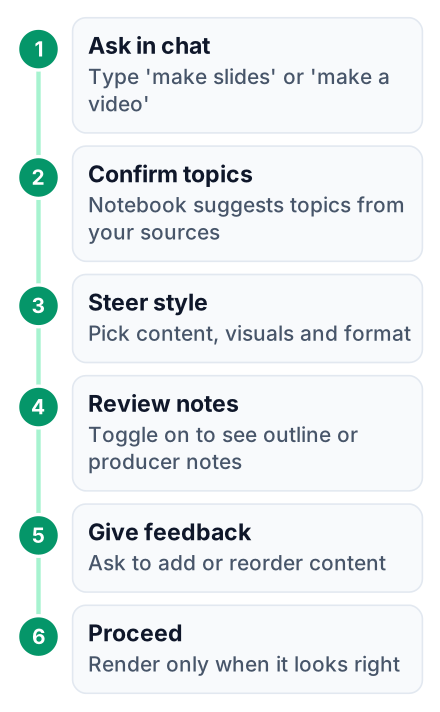
Ask in chat
Type "make slides" or "create a video overview" for your uploaded sources.
Confirm topics
Approve or adjust the topics Notebook suggests from your documents.
Steer style
Tell it what to include, pick a visual style and choose the format.
Review notes
Turn on the Review toggle to see outline notes or producer notes in the Studio panel.
Give feedback
Type changes like "add an executive summary" or "swap the order of scenes."
Proceed
Hit Proceed only when the plan looks correct, and Notebook renders the final output.
The toggle is optional. Google says you can skip it for a quick output. But for a submission that will be graded, skipping the review step is risky. A single wrong topic in a deck about your project work could cost marks.
Give feedback and hit Proceed, or skip ahead for a quick output
You can tell Notebook to add an executive summary or swap scene order, then Proceed; if you want speed, skip the Review toggle and get a quick result. Chrome Geek, which covered the update the same day, confirms this feedback loop is part of the release. The examples Google gives are direct commands in plain language.
Say you read the outline notes and notice the slides jump from the introduction straight to a difficult topic. You type "add a slide explaining the prerequisites first." Notebook updates its plan. You read it again. If it looks right, you hit Proceed.
For video, the feedback works on scenes. You can say "the second scene is too long, split it" or "move the conclusion to the start." Each time, Notebook revises the producer notes before rendering. This is a meaningful improvement over generating a video, watching the whole thing, and then starting over because one part was wrong. Videos are expensive to render, so catching a mistake in the plan stage saves real time.
How students can use this for class and exams
Turn PDF lecture notes into a presentation for a class, or a short video to re-watch before a test, all free on the free plan. The classroom applications are immediate and practical for Indian students.
Consider a student at a college in Kolkata preparing a seminar on data structures. They upload their professor's PDF notes. They ask for slides, confirm the suggested topics, pick a clean style, turn on the Review toggle to check the outline, and Proceed. The deck is ready quickly, without re-typing the content. For revision, the same flow can produce a two-minute video summary to re-watch in the metro on the way to the exam.
Students preparing for campus placements face a similar need. Interviewers often ask you to present a topic on the spot. Having practiced turning a technical PDF into a clear deck builds the same skill, and the video overview helps you practice explaining the material out loud.
Is Notebook free and when will the update reach you?
Gemini Notebook has a free plan where this works, and the rollout is global over the coming week, so the Review toggle may not appear instantly. Gemini Notebook has a free tier, per Google's own pricing page. This feature does not require a paid upgrade.
The rollout is not instant. That means if you open Notebook tonight and do not see the Review toggle, it is on its way. The timing varies by account and region.
A student who cannot afford a premium AI subscription gets the same guided workflow as a paying user on a Plus plan. For students in India on tight budgets, this is a significant release.
Open Gemini Notebook tonight, upload a PDF you are studying for a class, and ask for slides. When the Review toggle appears, turn it on and read the outline notes before you hit Proceed. If the toggle is not there yet, wait a day or two and try again.


