Why Does ChatGPT Know Your Name? 4 Settings to Check
ChatGPT greets you by name because of your account name, custom instructions, saved memories, or chat history. None of them are guesses. Each source sits in a different Settings page, and clearing one does nothing to the others.

You open ChatGPT, type "hi", and it greets you by your first name. You never told it your name in that chat. Where did it get it?
ChatGPT does not guess your name. It reads it from one of four places: your account name, your custom instructions, your saved memories, or your chat history. Each can be checked and changed in Settings. A five-minute check shows which one is responsible and limits what ChatGPT keeps about you.
Find which of four sources gives ChatGPT your name
Each source lives in a different part of the app, and Memory is a separate feature from custom instructions and from chat history. Clearing one does nothing to the others.
The account name is the source most people miss. ChatGPT can use the account name already shown in the product, according to this guide, so check what your own account shows. That means it can greet you by name even if you have never typed it into a chat, and you can only change it by editing the account name.
Here is where each source sits and how to clear it:
| Source | Where to look | What it stores | How to clear it |
|---|---|---|---|
| Account name | Your profile menu, on the account profile | The name you signed up with | Edit the name on your account profile. It cannot be switched off any other way, and the history toggle does not remove it |
| Custom instructions | Settings > Personalization > Custom instructions | Anything you wrote about yourself | Edit the text and remove your name |
| Saved memories | Settings > Personalization > Memory | Facts ChatGPT chose to keep from your chats | Delete each memory you do not want |
| Chat history | Your chat list and the "Reference chat history" toggle | Your past conversations | Delete old chats and switch the toggle off |
Ask ChatGPT what it remembers about you
Type "What do you remember about me?" in a new chat to see what it says, then compare the answer with your Settings pages, as this memory guide suggests for checking what it keeps.
What do you remember about me?An illustrative reply, with each line matched to its source:
Your name is Asha.                          (account name)
You like short, plain-language answers.     (custom instructions)
You are studying computer science.          (saved memory)
You asked about a visa form last week.      (chat history)
Read the reply line by line. Put each fact next to one row of the table above. Your name with nothing else attached probably comes from the account. A detail like "studies computer science in Pune" or "is applying for jobs in Texas" usually comes from a saved memory or an old chat.
Treat this reply as a clue, not as proof. The model can miss things or word them loosely. The Settings pages are the real record, and that is where the next steps happen.
Review and delete saved memories
Open Settings > Personalization > Memory to see every saved memory and delete the ones you do not want kept, using the path described in this guide.
Four sources can give ChatGPT your name, and the list below walks through them in order. The training toggle and Temporary Chat are related settings, covered after the list.
Delete saved memories
Go to Settings > Personalization > Memory. Read each entry and delete anything personal you do not want kept.
Check your custom instructions
Open the custom instructions page. Remove your name, college or employer if you typed them in.
Check your account name
Open your profile menu and edit the name on your account profile if you want a different one used. This is the one source you cannot fully switch off. Changing the name is the only way to stop it appearing.
Turn off "Reference chat history"
This stops old chats from shaping new replies.
One rule catches almost everyone. Deleting a chat does not delete a saved memory. If ChatGPT pulled your name into Memory from a conversation, removing that conversation leaves the memory in place. Delete the chat and the memory.
Turn off 'Improve the model for everyone'
This one setting in Settings > Data Controls stops your conversations from being used to train OpenAI's models, as Tech.co's step-by-step walkthrough with screenshots shows.
The clicks are short. Open Settings, choose Data Controls, find "Improve the model for everyone", and switch it off. Tech.co's article has images of each screen if your menu looks different.
Be clear about what this does not do. It controls training, not memory. Your name will still appear in replies if it sits in your account, your instructions or your saved memories. If you flip this switch and still see your name, it is because the name sits in your account, instructions or memories. The setting worked; it was simply aimed at a different problem.
If you are comparing paid plans and wondering what you get for the money, our breakdown of GPT-6.1 Terra pricing for students covers that side.
Switch off 'Reference chat history'
Turning this off schedules the chat information ChatGPT remembered for deletion within 30 days, so your old chats stop shaping new replies.
Find the "Reference chat history" toggle in Settings and switch it off. The removal is not instant. Expect some old details to show up for a while before the deletion finishes.
This is a trade, and you should make it with open eyes:
Pros
- Old conversations stop leaking into new answers.
- The account name is no longer pulled in through chat history.
- A fresh chat starts closer to a blank page.
Cons
- You repeat your context, like your course or your tech stack, more often.
- Answers feel less tailored to you.
Repeating context costs messages. If you also use Claude and hit limits, the tips in our post on stretching Claude Pro limits help you write short, reusable context notes.
Use Temporary Chat for sensitive topics
Temporary chats do not create memories, so use them for anything personal that you do not want kept.
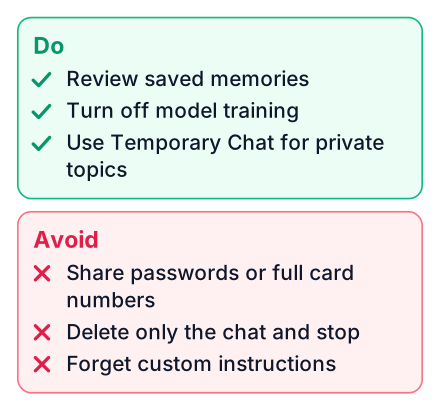
Think of the questions you would not say out loud in a library. Say you got a job offer and want help reading the salary terms. Or you are filling in a US student visa form, or an Indian passport application. Or you have a medical worry you want explained in simple words. Each of these belongs in a Temporary Chat. Medical students using AI for study have their own trade-offs, covered in our ChatGPT vs Gemini post for NEET PG.
Some things should stay out of any chat you expect to be remembered:
- Passwords and one-time codes
- Full card details or bank account numbers
- Health records and test reports
One related note: Chrome's AI autofill can now search your Gmail with your permission. Whichever tool asks, deciding what you share before you click is the part only you can do.
Common mistakes when cleaning up ChatGPT memory
The usual mistake is clearing only one of the four sources, so the name comes back in the next chat, because each source is stored and cleared separately.
Match the symptom to the fix:
- You deleted a chat, but the detail still appears. The memory was saved separately. Delete it in Settings > Personalization > Memory.
- Memory is empty, but it still uses your name. Your name is probably in your custom instructions. Edit them.
- You turned off training and nothing changed. That toggle was never about memory. Use the Memory page and the chat history toggle instead.
- Everything is cleared, and it still says your first name. The account name stays with your account and cannot be switched off. Edit the name on your account profile if you want a different one used.
Open ChatGPT now, go to Settings > Personalization > Memory, and delete one memory you don't want kept. Then switch on Temporary Chat for your next personal question.