New Gemini Notebook Study Tools for Indian Students
Google added video overviews, interactive learning overviews, and three new quiz formats to Gemini Notebook. Learn how Indian students can use them for revision and claim one year of Google AI Plus free.

Google just added three study tools to Gemini Notebook that most students haven't touched yet: 60-second video overviews, interactive learning overviews, and three new quiz formats. As a student who revises from lecture PDFs, these are worth knowing about now.
The best way to study smarter with Gemini Notebook is to upload your course PDFs, then generate a short video overview, an interactive learning overview, and short-answer, multi-select, or fill-in-the-blank quizzes from the same notebook. All of these stay grounded strictly in your uploaded material, so they reflect your syllabus, not general AI guesses. The quiz questions come from your professor's slides, not from whatever the AI remembers about the topic.
What exactly is new in Gemini Notebook for studying
Three study features arrived in Gemini Notebook: 60-second video overviews, interactive learning overviews, and three new quiz formats (short-answer, multi-select, fill-in-the-blank). Google announced these on October 16, 2026, in a blog post about study tips for the platform. The features build on earlier work from September, when Google introduced the video overviews and the expanded quiz options.
The key detail is that every one of these features works only with material you upload. Gemini Notebook does not pull from the open web. If you upload a PDF about operating systems, the video overview explains operating systems the way your professor taught them, not the way a random website does. For students in India who follow a specific university syllabus, that matters. A tool that knew the general topic but not your exact curriculum would be far less useful.
Google's announcement lists these features as part of a broader push to make Notebook a proper study companion, not just a document summarizer. The video overviews and interactive learning overviews are designed to replace passive rereading with active engagement. And the quiz formats give you a way to test yourself without writing questions by hand.
Upload your semester PDFs into one notebook
Create a new notebook and add all your lecture and assignment PDFs so every study feature uses only your course material.
For a DBMS paper where exams are theory-heavy, use the short-answer quiz to drill definitions, and the multi-select for tricky 'choose all that apply' questions. For a coding practical exam, use fill-in-the-blank for syntax from your own lab manuals. Collect the lecture PDFs from your professor, the assignment handouts, and any practice problem sets. Put them in one folder on your computer. Open Gemini Notebook, create a new notebook, and upload everything from that folder. You can name the notebook "DS Semester 4" or whatever fits. Organizing by subject keeps your material clean and makes each notebook a single revision unit.
After uploading, look for the Reports tab. That is where the learning overviews and quizzes live. Google's documentation confirms that quizzes and flashcards can be customized by editing questions, so you are not stuck with whatever the tool generates. Google's docs let you edit any quiz question, so you can fix one that's too easy or adjust the phrasing to your professor's style. The upload step is the foundation, and it takes ten minutes. Doing it once for each subject gives you a complete revision setup for the semester.
Generate a 60-second video overview of your hardest topic
Ask Gemini Notebook to create a short video overview that explains a complex concept from your notes in about one minute.
Here is how it works: open a notebook that has your material uploaded, find the option for a Short Video Overview, and select the topic you want. The tool generates a 60-second explainer video that combines a narrative voiceover with educational animations for formulas, diagrams, and science concepts. If you are revising a topic like recursion or network routing, the animation can show the flow of data in a way that a static PDF cannot.
The video overviews work in over 80 languages, which is a real advantage for Indian students who study in regional languages or English. You can watch them on the go, during a commute, or share one with a classmate who is struggling with the same topic. A classmate who missed a lecture can catch up in a minute without reading twenty slides.
One honest note: a 60-second video is a summary, not a deep dive. Use it to cement a concept you already studied, not to learn something from scratch. It works best when you watch it after reading the chapter, because it reinforces the key points in a different format. Your brain gets a second pass at the material, which strengthens the memory.
Run an interactive learning overview under Reports
Open the Reports tab to generate an interactive learning overview that walks you through your material step by step.
This feature weaves together summaries, slides, quizzes, and flashcards from your coursework into one guided path. Instead of opening five different files and trying to decide what to study first, you get a structured sequence that moves from core concepts to applied questions. Google's September 2026 announcement says the interactive learning overviews were rolling out to all users within a few weeks of September 15, 2026.
For revision, this is the closest thing to having a tutor structure your study session. The overview starts with the big picture, then narrows down to specifics, then tests you with quizzes and flashcards. The order follows the logic of your course material, which is how a good revision session should flow.
Try this: open Reports for your data structures notebook and run the learning overview. When it reaches a quiz question you get wrong, stop and read the explanation it gives. That targeted feedback is where the real learning happens, because it points at the exact gap in your understanding.
Create short-answer, multi-select, and fill-in-the-blank quizzes
Pick one of the three new quiz formats in Notebook to test yourself on your own notes, rather than generic questions.
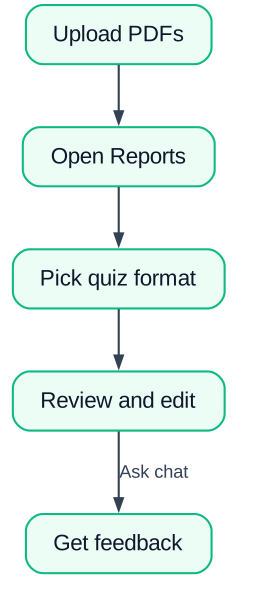
Earlier versions of Notebook only supported multiple-choice questions. The October update adds short-answer, multi-select, and fill-in-the-blank formats, which cover more of how exams actually test you. A short-answer question forces you to recall a definition from memory. A multi-select question checks whether you understand why two answers are both correct. Fill-in-the-blank tests precise terminology.
Open Reports
Navigate to the Reports tab in your notebook where quizzes and flashcards are generated.
Choose a quiz format
Pick short-answer, multi-select, or fill-in-the-blank from the available options.
Generate and edit
The tool creates questions from your PDFs. You can edit any question that does not fit your professor's style.
Take the quiz and ask for feedback
After answering, ask the notebook chat for feedback on where you went wrong and what to review next.
Google's Workspace Updates post, published September 18, 2026, confirms that quizzes and flashcards can be customized by editing questions. That editing ability is important because your professor may use specific phrasing that a generic quiz would miss. Adjusting a question to match your course's terminology makes the practice more accurate.
Start with short-answer for your weakest topic. Then fill-in-the-blank for terminology. Finally multi-select for concepts with multiple correct answers. Rotate through the three formats across the week instead of repeating the same multiple-choice questions.
Use the free student plan that works in India
Indian students can claim one year of Google AI Plus for free (2x usage limits), not the US-only Google AI Pro offer.
Google's September 2026 announcement includes a student deal, but the details differ by country. US students get one year of Google AI Pro free, which is a $19.99 per month value and gives 4x higher usage limits. Students in India and more than 140 other markets outside the US get one year of Google AI Plus free, which is a $4.99 per month value with 2x higher usage limits. See the [official announcement](https://blog.google/innovation-and-ai/products/gemini-notebook/new-study-tools-september-2026/) for details. Both deals must be redeemed by December 31, 2026.
Do not fall for the US deal if you are in India. The $19.99 Pro offer is only for accounts in the United States. Indian readers should claim the Google AI Plus offer instead. It still doubles your usage limits, which is meaningful when you are generating videos and quizzes regularly. Higher limits mean you can create more overviews in a day without hitting a wall.
Google AI Plus (India)
- Free for 1 year for students
- 2x higher usage limits
- $4.99 per month value after the offer ends
US-only Pro deal (not for India)
- Only for US accounts, as stated in the announcement
- Even if you use a VPN, your Google account region decides eligibility
- Claiming it could fail or cancel your access
To claim the offer, open Gemini Notebook settings and look for the student plan option. Google says students can redeem the offer by December 31, 2026, so you have time. If you are already using the free tier and hitting limits, this upgrade removes that friction for a full academic year.
Know when AI study help is actually helping you
Use Notebook's grounded tools for active recall and explanation, but if it just makes you feel productive without learning, it's not helping.
The honest rule: generate, test, explain. Don't just watch. Watching a 60-second video overview is easier than rereading a ten-page chapter, but it is also a passive activity. If you watch a video and then cannot explain the concept to a friend, you did not learn it; you just watched a video.
Active recall is the difference. A quiz forces you to pull an answer from memory, which is what builds durable understanding. Asking the notebook chat for feedback after a quiz turns a wrong answer into a learning moment. That combination of testing and targeted explanation is where the real studying happens.
If you find yourself generating video after video and taking no quizzes and answering no questions, stop. You are collecting study material, not studying. For example, I watch three videos and feel great, but I can't answer one quiz question from memory. That is the sign the tool is not helping.
For an extended take on this balance, read my post on how to use AI to learn to code without cheating, which covers the same boundary for programming practice.
Your next step: create one quiz from your notes today
Pick one subject, upload its PDFs, and generate a single short-answer quiz to test yourself immediately.
Do not plan a perfect workflow. Start with the smallest useful action. Open Gemini Notebook, create a notebook for one subject, upload its PDFs, and generate one short-answer quiz from Reports. That is fifteen minutes of work and it will show you exactly how the tool behaves with your material.
After you take the quiz, ask the chat for feedback on where to focus next. The feedback tells you which topics need another pass. Then try a 60-second video overview for the topic you found hardest. Watch it once, close it, and try to explain the concept out loud. If you can do that, you have used the tool the right way.
The larger point is about how you retain material. If you are studying by rereading notes, you are leaving recall on the table. Why you forget what you learn explains the science behind this, and how many hours to practice daily gives you a realistic schedule. The tools in Gemini Notebook exist to make retrieval practice easier, and they work in regional languages like Hindi, Bengali, and Tamil, so let them do that job.
One subject. One PDF folder. One short-answer quiz. That is the entire first step. The rest of the features will still be there tomorrow, but starting tonight builds the habit that lasts.


