Browser AI Features: What Works on Your Laptop in 2026
Chrome and Edge now ship real AI features, but hardware requirements vary wildly. Here's exactly which browser AI features work on a budget or student laptop in 2026, and which silently won't.

Most browser-AI tutorials assume you own a machine that can run the model. They walk you through installing Python, downloading a seven-gigabyte model file, and hoping your laptop doesn't overheat. That's not how a student in India with a budget laptop actually works.
On a budget laptop: Edge's Copilot works. On a gaming laptop: Chrome's on-device AI works. Here's how to check in five minutes.
- Chrome's built-in APIs (Summarizer, Translator, Language Detector, Prompt API) run on Gemini Nano.
- Edge's user-facing features (Copilot summaries, Vision, Image Creator, Compare, AI themes) are also built in.
- Chrome's APIs live at chrome://on-device-internals with demos at chrome.dev/web-ai-demos; Edge's features sit in the sidebar and edge://flags.
Where can you find Chrome's built-in AI APIs?
Chrome runs on-device AI (Gemini Nano) that powers Summarizer, Translator, Language Detector, and the Prompt API, and you can check or enable them at chrome://on-device-internals. This is the single URL to remember. It shows you what models Chrome has downloaded, which are ready, and lets you inspect the state of each one. If you type that into your address bar and see a model listed as available, you're in business.
These APIs have been stable since Chrome 138, per the Gemini Nano guide for developers. The Prompt API went stable for extensions in 138 and for any website in Chrome 148. So this isn't a beta experiment anymore — it's a shipping product. The 2026 API surface uses the LanguageModel global. Here's what calling it looks like:
To see the API in action, visit chrome.dev/web-ai-demos and try the demos without writing code. If you're a developer, the full API reference is in the guide linked above.
If you're a developer, the API looks like this. But if you're a student just trying features, you can skip the code and use the demos directly.
Does your computer meet the hardware requirements for Chrome's on-device AI?
Chrome's on-device AI only works on desktop with at least 22GB free disk and a GPU with more than 4GB VRAM, so many users won't have access. This is the part most tutorials skip.
They show you a cool demo and never mention that your five-year-old laptop with integrated graphics silently won't load it. The same guide notes this "fails open" — meaning Chrome doesn't hit you with an error. It just never offers the feature. You'd never know it exists.
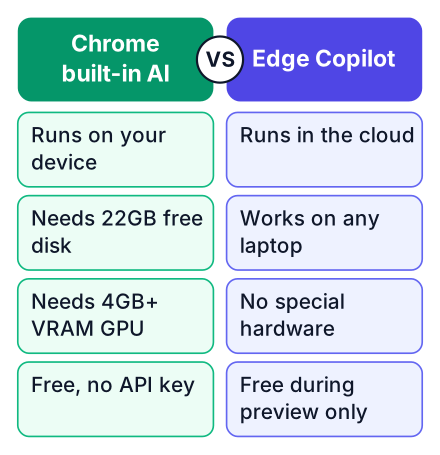
Here's the honest breakdown of what runs where. I've compared the five features across the three major browsers so you can see exactly where the gates are:
| Feature | Browser | What it does | Free? | Hardware gate |
|---|---|---|---|---|
| Summarizer API | Chrome | Condenses long text on-device | Yes | 22GB disk + 4GB VRAM |
| Translator API | Chrome | Translates between languages locally | Yes | 22GB disk + 4GB VRAM |
| Prompt API | Chrome | Runs open-ended text generation | Yes | 22GB disk + 4GB VRAM |
| Copilot features | Edge | Summarize, vision, image creation | Yes (preview) | None — cloud-backed |
| Prompt API | Edge / Firefox | Similar API surface | Not yet | Developer preview only |
For a student laptop with 8GB of RAM and integrated graphics, the Chrome column is basically closed. A machine with a discrete GPU — even a modest one — and a spacious SSD might make it. The way to know for sure is to open chrome://on-device-internals and look. That page tells the truth faster than any spec sheet.
Which Edge AI features work on any laptop?
Edge's Copilot summarization, Vision, Image Creator, Compare, and AI Theme Generator are cloud-backed and run on any laptop, not just high-end machines. Microsoft lists these on its official Edge features page.
Copilot summarization gets you the key points without reading everything.
Copilot Vision lets you ask questions aloud about what you see on screen — useful when a page is a wall of text. Image Creator makes images from a description. Compare lines up similar products across tabs so you don't tab-hop. AI Theme Generator styles your browser window from a prompt.
These are not buried in flags or developer settings. They live in the sidebar, the top-right Copilot button, or the "themes" option in settings. A student on any laptop, even one from five years ago, can open Edge and use them immediately. The trade-off is the cloud: your text goes to Microsoft's servers for processing. That matters if you're summarizing private notes, so keep that in mind for sensitive material.
One honest caution: Copilot AI mode is opt-in and free during preview, but Microsoft says that's only "for a limited time." It's a preview, not a promise. Check Edge's official feature page for the current preview status before you rely on it. If you start relying on it for your weekly reading, plan for the day it might change. And in testing, it was sometimes unreliable and annoying — the summary quality varies.
Is Edge's on-device Prompt API ready for regular users?
Edge's on-device Phi-4-mini API is in developer preview only in Canary and Dev builds, so most users cannot use it yet. Microsoft is taking the same approach as Google — a small model running locally — but it's not ready for regular users.
The state of on-device AI in the browser covers this: Edge exposes its own API surface via the Prompt API, but you need to run Edge Canary or Dev and use an experimental version of Edge. Canary and Dev are Microsoft's test versions of Edge — not for daily use.
This matters for one reason: if a tutorial tells you to use Edge's on-device AI in production, it's wrong today. The stable Edge most people have doesn't ship it. Treat any demo you see as a look at the future, not a feature you can build on. The safe path is Chrome's stable APIs if your hardware qualifies, or Edge's cloud Copilot if it doesn't.
Why is Chrome's built-in AI free, and what does that cost you?
Because Chrome downloads Gemini Nano once and shares it across all sites, there is no API key or per-token bill, but you have no control over the model version and face a large one-time download. Free, but your data stays on your device only if you use the local APIs — cloud features like Edge's send your text to Microsoft.
The Gemini Nano guide explains this clearly: the model is a compact one that Chrome fetches once and then any origin can use. That's why there's no billing dashboard and no signup flow. It's the closest thing to free AI inference a browser user can get.
Here's the trade-off: you cannot pin the model version, and the one-time download is large. But you do get offline use once installed.
For a student building a small project, the free cost is a real win. You can experiment with an AI feature without a credit card or a cloud account. But it also means you're building on a model you can't pin or upgrade — which is fine for a demo and risky for something you intend to keep alive for years.
Which features should you actually try today?
On a budget laptop, use Edge's cloud-backed Copilot features; on a machine with 22GB free disk and 4GB+ VRAM, try Chrome's built-in APIs via the demos at chrome.dev/web-ai-demos. That page is the official playground. It has working demos for the Prompt, Summarizer, Writer/Rewriter, Proofreader, and Translator/Language-Detection APIs. You can test each one without writing a line of code, then copy the pattern into your own project.
One warning from the same guide: Writer, Rewriter, and Proofreader are on a Developer trial, not stable, and their origin-trial windows (Writer/Rewriter 137–148, Proofreader 141–145) have expired. Treat those three as experimental toys, not something to ship. The stable four — Summarizer, Translator, Language Detector, Prompt API — are the real foundation.
For your own projects, the honest flowchart goes like this:
Open chrome://on-device-internals
Type it into Chrome's address bar and check whether a model is listed as available.
Try the stable demos
If the model is ready, visit chrome.dev/web-ai-demos and test the Summarizer and Translator demos.
Fall back to Edge
If the model isn't there, open Edge, click the Copilot button, and ask it to summarize a long article.
If you're building something bigger than a demo, this fits neatly with the other tools I've covered. A free deploy target like Railway or Render pairs well with a browser API that costs nothing to run.
If you're still learning the basics, the same focus rules apply — a clear plan beats a clever tool, whether you're learning SQL or using AI to study without cheating yourself. And if you want a deeper look at how these tools fit a study routine, the Gemini study tools guide covers the cloud side of the same idea.
Related reading: Free deployment options · Learn SQL · Use AI to study · Gemini study tools
Open chrome://on-device-internals to check if your machine qualifies. If it does, try the Summarizer demo at chrome.dev/web-ai-demos. If not, open Edge and ask Copilot to summarize a long article right now. Either way, you'll have used a browser AI feature — either on-device or cloud-backed — within five minutes, on the machine you already own.