ChatGPT Canvas Is Gone in 2026: How to Edit Code Now
OpenAI removed canvas from GPT-5.5 models on May 28, 2026. Writing blocks and code blocks inside the chat thread have replaced it. Here's the exact workflow to edit code today.

Most 2026 guides still teach a ChatGPT canvas that no longer exists on current models. Here's how to actually edit and fix code in ChatGPT today.
Canvas is gone from GPT-5.5 models, replaced by writing blocks and code blocks inside the chat. To edit code, open a code block, ask for a scoped fix, then copy the block out to a file. This is the workflow I recommend to every student who comes to me confused about where the old button went. It takes about a minute to learn, and it gets you back to solving the actual problem: fixing your code.
What happened to ChatGPT canvas in 2026
Based on community reports and third-party guides, OpenAI appears to have removed canvas from GPT-5.5 Instant and GPT-5.5 Thinking around May 28, 2026. However, OpenAI has not published an official help page or announcement specifically for this change; the community is tracking it on X and Reddit, and third-party guides like Static.app's guide document what is known. The standalone canvas help article now returns a 404 (as of this writing), which is why so many tutorials feel out of date.
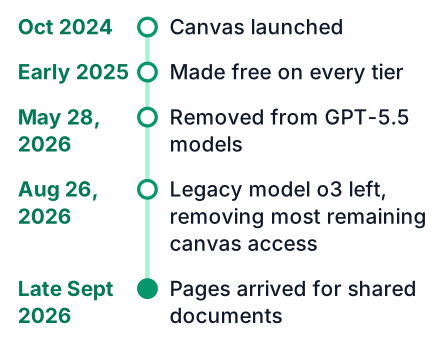
Here is the full timeline, so you can see where we are now. The dates are drawn from a mix of third-party guides and community reporting, as OpenAI's official changelog has not published this sequence:
| Date | What happened |
|---|---|
| October 2024 | Canvas launches as a side panel for writing and code (source) |
| Early 2025 | Canvas becomes free on every tier (source) |
| May 28, 2026 | OpenAI removes canvas from GPT-5.5 models (source) |
| June 8, 2026 | Writing blocks expand for long-form work (source) |
| August 26, 2026 | o3 leaves ChatGPT, taking most remaining canvas access with it (source) |
| Late September 2026 | Pages arrive for shared collaborative documents (source) |
Why your old 'open in canvas' trick no longer works
Typing 'open in canvas' or picking Canvas from the tools menu does nothing on current models, and there is no setting to bring it back (source). The feature is gone, not hidden.
Today, typing "open in canvas" in a GPT-5.5 chat returns a plain text reply like "I can't open canvas, but I can help you with your code here" — it does not open any panel. Picking Canvas from the tools menu shows a grayed-out option or nothing at all, and searching settings for a canvas toggle finds no result. The button simply does not exist on this model anymore.
The replacement is already in front of you. You just need to know what to click.
How to edit code in a ChatGPT code block
In a code block, you can ask for a scoped fix inline or switch to the full-screen editor (source).
Here is the workflow with a real example. Suppose you have a Python script that reads a CSV of student names and grades, but it keeps producing duplicate rows. Your code block looks like this (input CSV: students.csv with rows Alice,90 and Alice,85):
import csv
def load_grades(path):
    rows = []
    with open(path) as f:
        reader = csv.DictReader(f)
        for row in reader:
            rows.append(row)
    return rows
Instead of asking "fix this whole file," ask for a scoped fix: "Add deduplication to the load_grades function only, keeping the last entry for each student name." The model edits just that function, returning a revised block like this: it adds a seen dict and loops rows in order. It does not touch the rest of your file. The output block shows only the changed function, and you can copy that block into your local file.
On GPT-5.5, every code block shows a language label, a copy icon, and a full-screen expand arrow. For Python blocks, a Run button appears, and a Preview toggle is available for HTML and Markdown. Editing is done by asking the model for a scoped fix, not by direct text manipulation in the block.
The critical habit: copy the corrected block out before the chat moves on. Chat threads are not permanent files. Once you ask a new question, the old block can scroll away or get overwritten by a later edit.
How to use writing blocks for long-form assignments
Writing blocks handle long-form work with a full-screen editor, saving to Library, a table of contents, and download support (source). These expanded on June 8, 2026 to handle the kind of work students used canvas for.
Here is the flow for a long assignment like a project report:
Start a writing block
Ask ChatGPT for a draft of your report, and the model opens the result in a writing block inside the chat.
Edit in full-screen
Open the full-screen editor to work on the document without the chat thread crowding the view.
Save to Library
Save the block to your Library so the latest version has a permanent home you can reopen later.
Download
Download the final version to a file, then move it into Google Docs or Word for submission.
This works well for essays, lab reports, and project documentation. The writing block keeps your draft and your chat history in one place, which is convenient while you are still iterating.
ChatGPT writing blocks vs Google Docs: which should you use?
Use in-chat writing blocks for fast single-document editing, and Google Docs or Word for the permanent records system where the final approved copy lives (source). This is the 'chatgpt canvas vs docs' question, answered directly.
Here is how the options compare:
| Surface | Best for | Keep in mind |
|---|---|---|
| Writing blocks (in chat) | Fast drafts, single-document editing | Chat context matters; copy out before moving on |
| Google Docs / Word | Permanent records, submission, collaboration | This is where the approved version should live |
| Pages | OpenAI's shared collaborative documents | Arrived late September 2026; for multi-person work (source) |
If you are writing alone and fast, stay in the writing block. If a grade depends on this document, move the final version to Google Docs or Word where it will not vanish when the chat thread changes.
For the shared-document use case that canvas served, Pages is OpenAI's own answer, arriving in late September 2026 (source). If you need multiple people editing the same document, that is the surface to watch.
What about the remaining canvas access?
As of the o3 removal date (Aug 26, 2026), no model in ChatGPT has canvas; the last way in was o3, and that is gone. If any remaining path exists (e.g., via API for developers), it is not available in the standard ChatGPT interface.
o3 went through a 90-day sunset period before leaving ChatGPT, and it took most of the remaining canvas with it (source).
I know this is frustrating. You learned a tool, it worked well, and now it is gone. But the replacement blocks are genuinely capable, and they save you the side-panel hop that canvas required. The time you spent switching between chat and the canvas panel is now time spent inside one thread.
Common mistakes when editing code without canvas
The biggest mistake is asking for a full rewrite instead of a scoped fix (source).
Do this
- Ask for a scoped fix to one function or one section
- Copy the corrected block out immediately
- Paste it into a local file and run it yourself
- Use the full-screen editor for long code blocks
Avoid this
- Asking "fix everything" and getting a rewrite you cannot review
- Leaving the corrected block in the chat and losing it later
- Trusting the preview without running the code locally
- Hunting for a canvas button that no longer exists
Scoped fixes are reviewable. A full rewrite is a black box. When you ask the model to fix one function, you can read the diff and understand what changed. That is how you learn, and it is also how you catch mistakes the model made.
Running the code locally matters just as much. The in-chat preview is helpful, but your assignment will be graded on real execution. If you are working on a take-home coding assignment, this habit is the difference between passing and failing (how to pass a take-home coding assignment).
The same discipline applies to learning. If you are picking up Python or SQL, use the code block to experiment, but always copy the working version into your own practice file (start with SQL here). That file becomes your reference, not the chat thread.
If you want to build skills that do not depend on one model's interface, the fundamentals still matter most (skills a fresher needs in 2026). And if you are curious about what else your browser can do without a separate tool, there are useful options there too (browser AI features for students). For a quick verification of the canvas timeline, check the official ChatGPT changelog page (https://help.openai.com/en/articles/6825453-chatgpt-release-notes) which lists feature updates, or the community-tracked thread on X.
Open ChatGPT, start a new chat with GPT-5.5, paste a broken Python assignment, click the code block, and ask for a scoped fix to one function. Then copy the corrected block out to a .py file and run it locally. That is the whole workflow, and it takes less time than searching for a button that is gone.