How to Debug Your Code as a Beginner: A 5-Step Plan
Reading an error message feels like freezing, not solving. This 5-step plan walks you through reading errors, using console.log and breakpoints, explaining your code aloud, and fixing one change at a time. Stay calm and debug like a pro.
Last week, a student sent me a screenshot of red error text and said, "I don't even know what to look at." He'd been staring at it for an hour. The problem wasn't the bug. It was that he had no order of operations in his head. Here's the exact order I made him follow.
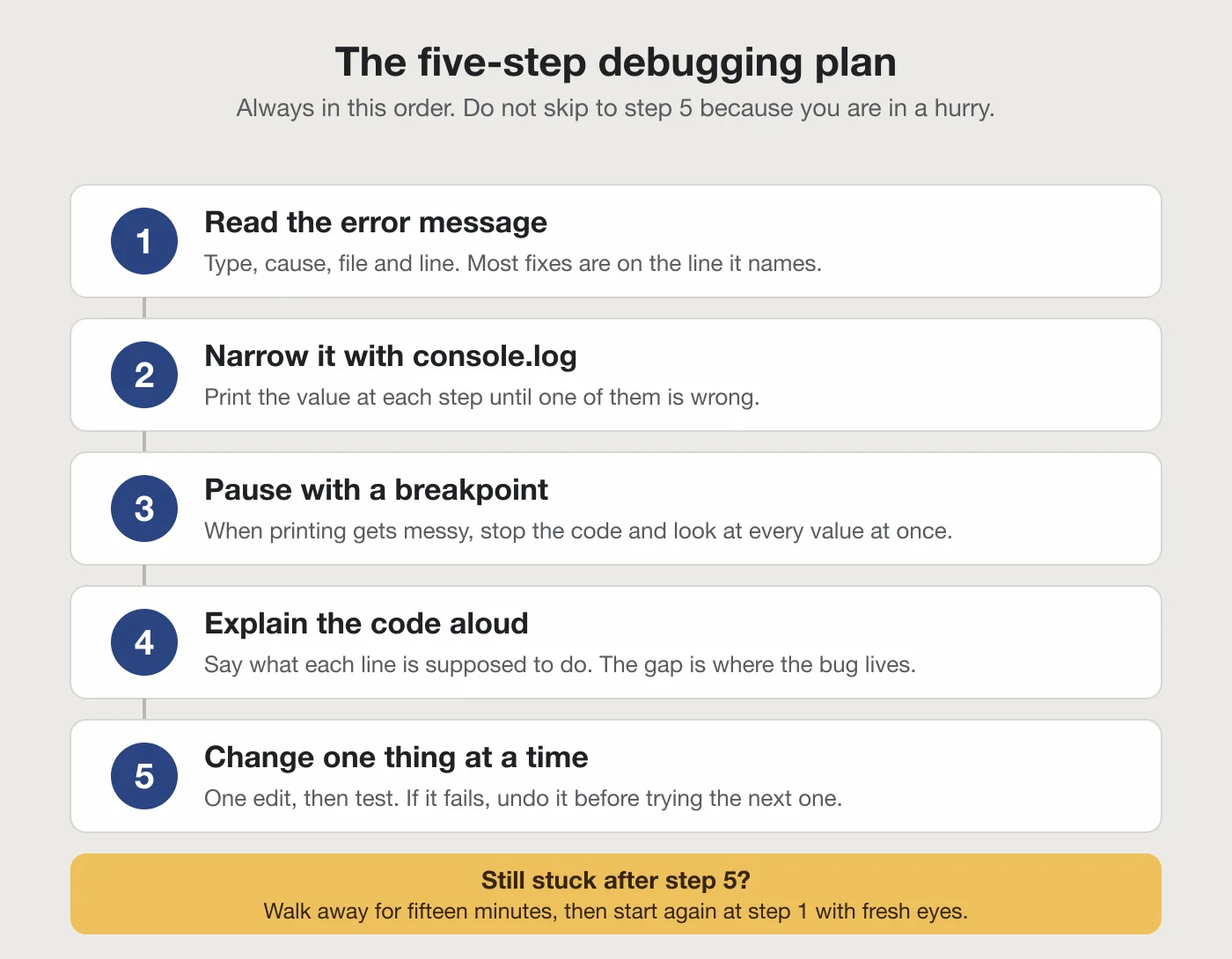
To debug your code as a beginner, work through five steps in order: read the error message, narrow the bug with console.log, pause with a breakpoint, explain the code aloud, and change one thing at a time. The goal is to stay calm and make the process repeatable, so you never freeze again when your code breaks.
- Read the error message.
- Narrow it with console.log.
- Pause with a breakpoint.
- Explain the code aloud.
- Change one thing at a time.
Why does your code break in the first place?
Your code breaks because of either a syntax error or a logic error, and knowing which one you have tells you where to start looking.
According to the MDN documentation on JavaScript debugging, there are two broad types of errors. A syntax error is a typo, a missing bracket, or a misspelled keyword. The computer cannot even run your code because it does not understand the grammar. A logic error is different: the code runs fine, but it does the wrong thing. Your loop goes one step too far, or your condition checks the wrong variable.
Both types are completely normal. Every developer, including me, writes broken code every single day. The difference between a beginner and an experienced developer is not that one writes fewer bugs. It is that one knows how to look at the bug without panicking.
Step 1: Why is reading the error message your first move?
The error message tells you the type of error and the exact line number, so you do not have to guess where to start looking.
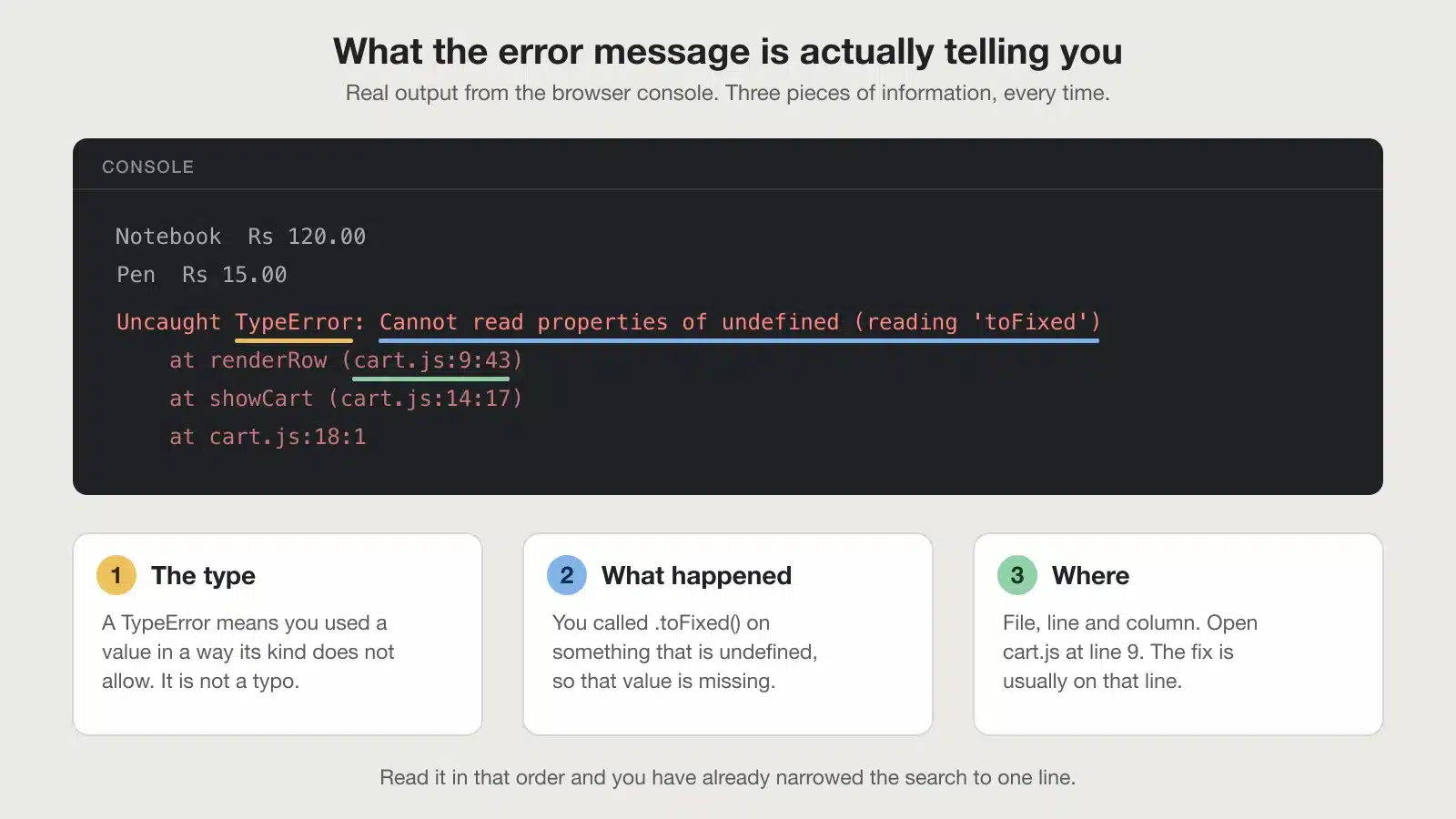
Say your page prints each cart item with its price. One item has no price. Open your browser's developer tools, look at the console, and this is what you get:
Notebook  Rs 120.00
Pen  Rs 15.00
Uncaught TypeError: Cannot read properties of undefined (reading 'toFixed')
    at renderRow (cart.js:9:43)
    at showCart (cart.js:14:17)
    at cart.js:18:1
That message has three parts. The first part, TypeError, tells you the error type. The second part tells you what went wrong: you called toFixed() on something that is undefined. The third part is the call stack, which is the list of functions that were called to reach the error. It points you to cart.js:9:43, meaning line 9, column 43 of your file.
The first two lines matter too. Notebook and Pen printed fine, so the third item is the one that broke. You now know the bug is in the data, not in the printing.
The message is a clue, not a judgment. It is the computer telling you exactly where it got confused. Most of the time, the fix is right there on that line. You just have to look at it.
Step 2: How do you narrow the bug with console.log and console.error?
You place console.log calls at key points to print variable values and see how far your code runs, and console.error to mark a spot as failed with a call stack.
Imagine you have a function that is supposed to add up prices in a cart, but the total is wrong. You can add a console.log inside the loop to see what is happening:
function calculateTotal(cart) {
  let total = 0;
  for (let item of cart) {
    console.log("item price:", item.price);
    total += item.price;
  }
  console.log("final total:", total);
  return total;
}- If you see
item price: undefined, you know the problem: your cart items do not have apriceproperty. - If you see the prices but the final total is wrong, the problem is in the addition itself.
Use console.log for normal tracking. Use console.error when you want to mark a spot as failed; it prints in red and shows a call stack, which helps you trace how execution reached that point. The MDN guide covers both in detail.
Step 3: When should you use breakpoints instead of console.log?
Use breakpoints when you need to pause execution and inspect variable values at a specific moment, which is faster than adding and removing many console.log statements.
Console.log is great for simple tracking. But when your code is long, adding logs everywhere gets messy. You have to remove them all later. Breakpoints solve that.
In the browser's debugger tool, click on the line number where you want to pause. A blue marker appears. Now reload the page. Execution stops at that line, and you can hover over any variable to see its current value. You can step through the code line by line and watch the values change in real time.
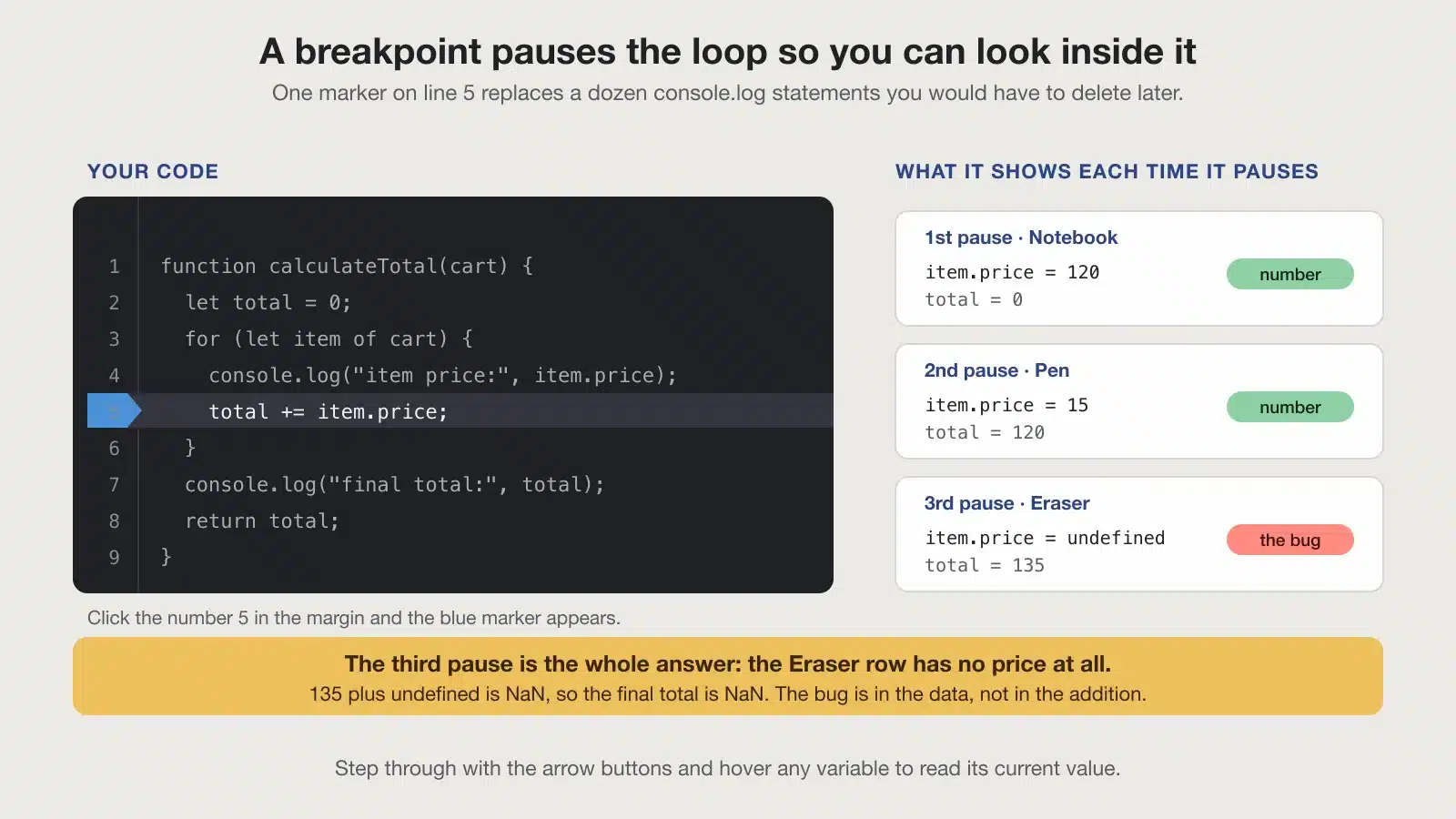
This is especially useful inside loops. Instead of printing fifty lines of output, you pause on the third pass and look at the exact state of your variables. The MDN debugging guide walks through setting breakpoints step by step.
Step 4: How does explaining your code aloud help you find the bug?
Explaining your code step by step in plain language forces your brain to notice where your logic does not match what you intended, and that moment is where the bug lives.
This technique is called rubber duck debugging. The name comes from a story in The Pragmatic Programmer by Andy Hunt and Dave Thomas, where a programmer carries a rubber duck and explains their code to it line by line. The Wikipedia article on rubber duck debugging explains that the act of describing the problem out loud often makes the mistake obvious, even when the duck says nothing back.
I had a student who spent an hour staring at a function that returned the wrong result. When I asked her to explain it to me, she said, "So I check if the user is logged in, and if they are, I redirect them to the login page." She stopped mid-sentence. She had the condition backwards. She was redirecting logged-in users to the login page instead of the dashboard.
You do not need a duck. Explain your code to a friend, a classmate, or even a text file. Write out what each line is supposed to do. The act of putting your assumptions into words exposes the gaps.
Step 5: Why fix one small change at a time?
Changing one line at a time lets you see exactly which change fixed the bug, so you never lose track of what works and what does not.
When you are frustrated, the temptation is to rewrite everything at once. That is a trap. If you change five things and the code still does not work, you have no idea which change mattered. You have created a new mystery on top of the old one.
| One change at a time | Many changes at once |
|---|---|
| You know exactly what fixed it | You cannot tell which change worked |
| Easy to undo if it makes things worse | Hard to undo without losing progress |
| Builds a clear mental model | Leaves you guessing |
Make one edit. Test it. If it works, move on. If it does not, undo it and try a different approach. This discipline feels slow at first, but it is actually the fastest path because you never go backwards.
What if you are still stuck after all this?
If you are still stuck, walk away for a short break, then come back and re-read your code with fresh eyes, or ask a friend or a forum for help with the specific error message.
Being stuck is part of learning, not a failure. Every developer hits walls. The difference is what you do at the wall.
- Step away. Go drink water, take a walk, or work on something else for fifteen minutes. Your brain keeps processing the problem in the background, and you will often spot the mistake the moment you sit back down.
- Re-read your code from the top, line by line, as if you have never seen it before. Do not assume any line is correct. Read it exactly, the way the computer does.
- Rewrite the function from scratch. Do not copy your old code. Type it again, thinking about each line as you go. This often reveals the bug because you have to decide what each line should do.
- Ask for help. Post the exact error message and what you already tried. A friend, a classmate, or a forum can give you a fresh perspective. There is no shame in asking; it is how every developer learns.
Where should you go after this?
Keep the five steps beside you for a week and the panic goes away on its own. These four posts cover what usually comes next.
- Escaping tutorial hell, so you spend more time writing real code and less time watching it.
- Why you forget what you learn, which explains how your memory behaves while you practise.
- A full-stack project walkthrough, for when you are ready to build something bigger.
- Recovering from coding burnout, if the frustration has started to feel heavy.
Open your browser's developer tools (F12 or Ctrl+Shift+I on Windows, Cmd+Option+I on Mac), write a tiny script that intentionally has an error, and practice reading the console message and setting a breakpoint. Do that for ten minutes today, and the next real bug will feel far less scary.


