Build Your First Full-Stack App: A Step-by-Step To-Do List with React, Node & MongoDB (2026)
Build a full stack to-do app with React, Node, Express and MongoDB. We cover CRUD routes, the CORS error, free deploy, and a README for your portfolio.
A folder full of finished React tutorials. Buttons that work. Counters that count. Then someone asks "where does the data go when you refresh the page?" and the answer turns out to be nowhere — it vanishes, every time. That gap, between a pretty screen and a real app that remembers things, is exactly what we close today.
You and I are going to build a full stack to-do app from an empty folder to a live URL you can put on your resume. Real code. Real errors. Real deploy.
Quick answer: what does it take to build a full stack to-do app?
To build your first full-stack app (a to-do app) you need three parts: a React frontend (the screen), a Node and Express backend with a REST API (the messenger), and a MongoDB database (the memory). The browser cannot talk to the database directly, so the API sits in the middle. You build each part, connect them, then deploy all three for free. By the end you have a working app and a README, ready for your portfolio.
New to coding completely? Start with my guide on how to learn to code in 2026 first, then come back here. This tutorial assumes you can read basic JavaScript.
What you’re building (and why it has three parts)
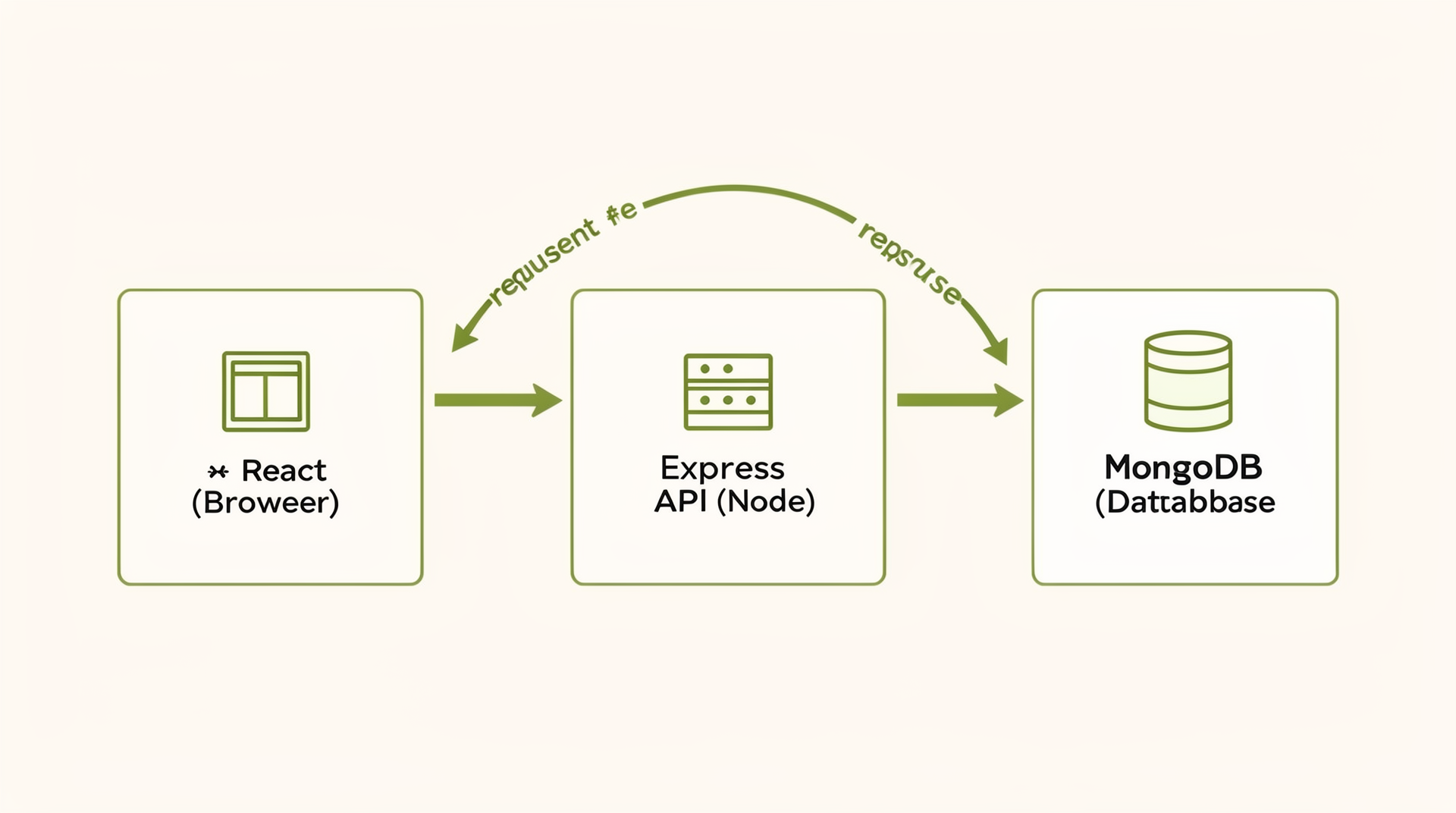
You are building a to-do list that saves your tasks even after you close the browser. It has three parts, and each part has one job.
Here is the part most tutorials skip: why three parts at all? A browser cannot open a database directly. That would be a security hole. Anyone could read or delete your data. So we put a guard in the middle.
- React (frontend) — the screen the user sees and clicks. It runs in the browser.
- Node + Express (backend) — the messenger. It receives requests and decides what to do. An API (Application Programming Interface) is just a set of URLs your frontend can call to ask for or change data.
- MongoDB (database) — the memory. It stores your to-dos so they survive a refresh.
This stack has a name: MERN. That stands for MongoDB, Express, React, Node. You will see “MERN to-do app for beginners” everywhere, and this is it.
| Layer | Tool | Its one job |
|---|---|---|
| Frontend | React (with Vite) | Show the list, take clicks |
| Backend | Node + Express | Answer requests, talk to the database |
| Database | MongoDB Atlas | Store the to-dos forever |
A request flows like this: you click “Add”, React sends a message to the Express API, Express saves it in MongoDB, then sends back the saved to-do. React shows it on screen. Simple loop. We build it piece by piece.
Set up your project and tools
You need two folders: one for the frontend (client/) and one for the backend (server/). They run as two separate programs. Keep them in one project folder called todo-app.
First, check Node is installed. Run node -v in your terminal. If you see a version number like v20 or higher, you are ready. If not, install it from the official Node.js docs.
Now create the frontend. We use Vite, not create-react-app. Create-react-app was deprecated in 2026 and the React team no longer recommends it. Vite is faster and is the current default.
mkdir todo-app
cd todo-app
npm create vite@latest client -- --template react
That builds the React app in a client/ folder. Now build the backend folder next to it.
mkdir server && cd server
npm init -y
npm i express mongoose cors dotenv
Four packages, four jobs. express runs the server. mongoose talks to MongoDB in plain JavaScript. cors fixes a browser block you will meet soon. dotenv reads secret values from a file. We come back to each one.
You now have todo-app/client and todo-app/server. Good. Let us make the backend do something.
Build the backend API with Express + MongoDB
The backend is a REST API: a set of URLs (called endpoints) that create, read, update, and delete to-dos. An endpoint is one URL that does one job, like /api/todos for “all to-dos”. This is how you build a REST API with Express and MongoDB.
Step 1: Get a free MongoDB Atlas database
MongoDB Atlas gives you a free cloud database. Sign up, create a free cluster, then follow the official Atlas getting-started guide to get your connection string. It looks like mongodb+srv://user:password@cluster.mongodb.net/.
Watch out for one trap here. Atlas blocks all connections by default. In “Network Access”, add the IP address 0.0.0.0/0 to allow access from anywhere. Without this, your deployed server cannot reach the database and you will get a silent timeout.
Step 2: Store secrets in a .env file
Never paste your database password directly in code. Put it in a .env file. An env var (environment variable) is a setting kept outside your code, so secrets never get pushed to GitHub. Create server/.env:
MONGO_URI=mongodb+srv://user:password@cluster.mongodb.net/todoapp
PORT=5000
Now create a server/.gitignore file with two lines, so your secrets and packages never get uploaded:
node_modules
.env
Step 3: Define the Todo model
A model tells Mongoose what one to-do looks like. Create server/models/Todo.js:
const mongoose = require("mongoose");
const todoSchema = new mongoose.Schema({
  text: { type: String, required: true },
  done: { type: Boolean, default: false },
}, { timestamps: true });
module.exports = mongoose.model("Todo", todoSchema);
Step 4: Write the server and all four CRUD routes
CRUD means Create, Read, Update, Delete. Those are the four things our app does to a to-do. Create server/index.js:
require("dotenv").config();
const express = require("express");
const mongoose = require("mongoose");
const cors = require("cors");
const Todo = require("./models/Todo");
const app = express();
app.use(cors());          // lets the browser call this API
app.use(express.json());  // reads JSON from requests
mongoose.connect(process.env.MONGO_URI)
  .then(() => console.log("DB connected"))
  .catch((err) => console.log("DB error:", err.message));
// READ: get all todos
app.get("/api/todos", async (req, res) => {
  const todos = await Todo.find().sort({ createdAt: -1 });
  res.json(todos);
});
// CREATE: add a todo
app.post("/api/todos", async (req, res) => {
  const todo = await Todo.create({ text: req.body.text });
  res.status(201).json(todo);
});
// UPDATE: toggle done
app.put("/api/todos/:id", async (req, res) => {
  const todo = await Todo.findByIdAndUpdate(
    req.params.id, req.body, { new: true }
  );
  res.json(todo);
});
// DELETE: remove a todo
app.delete("/api/todos/:id", async (req, res) => {
  await Todo.findByIdAndDelete(req.params.id);
  res.json({ message: "deleted" });
});
const PORT = process.env.PORT || 5000;
app.listen(PORT, () => console.log("Server on " + PORT));
Run it with node index.js from the server/ folder. You should see “DB connected” and “Server on 5000”. Your API is alive. The new Express starter docs explain each line if you want more depth.
We will add proper error handling soon. First, let us build the screen.
Build the React UI
The React UI shows the list, an input box, and an add button. We keep it in one file for now. Open client/src/App.jsx and replace it with this.
import { useState, useEffect } from "react";
const API = "http://localhost:5000/api/todos";
export default function App() {
  const [todos, setTodos] = useState([]);
  const [text, setText] = useState("");
  // load todos when the page opens
  useEffect(() => {
    fetch(API)
      .then((res) => res.json())
      .then((data) => setTodos(data));
  }, []);
  return (
    <div>
      <h1>My To-Dos</h1>
      <input value={text} onChange={(e) => setText(e.target.value)} />
      <button>Add</button>
      <ul>
        {todos.map((t) => (
          <li key={t._id}>{t.text}</li>
        ))}
      </ul>
    </div>
  );
}
The useEffect runs once when the page loads. It calls the API and puts the to-dos into state. The map draws one list item per to-do. Want to learn React deeper? The official React learn docs are the best free source.
Right now the Add button does nothing. Let us connect it and make adding work.
Connect the frontend to the backend (fetch + fix CORS)
To connect a React frontend to a Node backend, the frontend uses fetch to call the API URL. To add a to-do, you send a POST request with the text as JSON. Add this function inside App:
const addTodo = async () => {
  if (!text.trim()) return;     // block empty input
  const res = await fetch(API, {
    method: "POST",
    headers: { "Content-Type": "application/json" },
    body: JSON.stringify({ text }),
  });
  const newTodo = await res.json();
  setTodos([newTodo, ...todos]);
  setText("");
};
Then change the button to <button onClick={addTodo}>Add</button>. The headers line matters. It tells the server “I am sending JSON”. Without it, Express cannot read the body and req.body.text is undefined.
Now run both apps. Start the server with node index.js, and the client with npm run dev. Click Add. And you will likely hit a wall.
The CORS error wall
Open the browser console and you may see a red error with the word CORS in it. This stops almost every beginner. Do not panic. It is normal and the fix is one line.
CORS (Cross-Origin Resource Sharing) is a browser rule. Your React app runs on one address (port 5173) and your API runs on another (port 5000). The browser treats them as strangers and blocks the call for safety. You fix it by telling the server “I trust this caller”.
We already added the fix in the backend code above. This line is the whole solution:
app.use(cors()); // place this BEFORE your routesIf you skipped it, add it now and restart the server. Refresh the page and click Add again. The to-do appears, and it survives a refresh because it lives in MongoDB now. That is a real full-stack loop working end to end.
Save this section. The CORS error will visit you in every full-stack project you ever build. Now you know it by name.
Handle errors like a real developer
The code so far works only when nothing goes wrong. That is the simple case. Real apps break, and a junior developer who handles errors stands out. This is where beginners get stuck, so let us do it properly.
On the backend, wrap each route in try/catch. If the database fails, send back a clear status code instead of crashing. A status code is a number that tells the caller what happened: 200 means OK, 500 means server error. Here is the create route, made safe:
app.post("/api/todos", async (req, res) => {
  try {
    if (!req.body.text) {
      return res.status(400).json({ error: "Text is required" });
    }
    const todo = await Todo.create({ text: req.body.text });
    res.status(201).json(todo);
  } catch (err) {
    res.status(500).json({ error: "Something went wrong" });
  }
});
Two guards here. The 400 check blocks empty input before it reaches the database. The catch block returns 500 if anything else fails, so the server keeps running.
On the frontend, show the user what is happening. Add loading and error states. Here is the load logic with both:
const [loading, setLoading] = useState(true);
const [error, setError] = useState("");
useEffect(() => {
  fetch(API)
    .then((res) => {
      if (!res.ok) throw new Error("Failed to load");
      return res.json();
    })
    .then((data) => setTodos(data))
    .catch((err) => setError(err.message))
    .finally(() => setLoading(false));
}, []);
Then in your screen, show {loading && "Loading..."} and {error && error} above the list. Now the user sees a spinner message, not a blank page, while data loads. They see an error message, not a frozen screen, when the server is down.
I will not hide the hard part: stuck on a confusing error is normal. When I get stuck, I read the exact error text first, then search it. If you want to debug faster, see my notes on using AI tools to debug without depending on them too much.
Deploy your app for free
You deploy a MERN app for free across three services: the backend API on Render or Railway, the React frontend on Vercel, and the database on MongoDB Atlas. All three have free tiers. No card needed to start.
Push both folders to GitHub first. Then deploy in this order.
- Database — your Atlas cluster is already live. Confirm
0.0.0.0/0is in Network Access. - Backend — create a new web service on Render (or Railway). Point it at your
server/folder. AddMONGO_URIas an environment variable in the dashboard, not in code. - Frontend — import your repo into Vercel and point it at the
client/folder. The Vercel deployment docs walk through this.
The hardcoded-localhost trap
Here is the trap that breaks most first deploys. Your React code says const API = "http://localhost:5000/api/todos". On your machine that works. On the live internet, localhost means the user’s own computer, not your server. The app loads but no to-dos appear.
Fix it with an environment variable in the frontend too. In Vite, env vars start with VITE_. Create client/.env and change the code:
// client/.env
VITE_API_URL=https://your-backend.onrender.com/api/todos
// in App.jsx
const API = import.meta.env.VITE_API_URL;
Set the same VITE_API_URL in the Vercel dashboard, with your real Render URL. One more thing: in your backend cors() call, you can later restrict it to your Vercel domain. For now, open cors() is fine to get it working.
The complete final App.jsx (copy-paste ready)
We built App.jsx in small pieces so each idea was clear. Here is the whole file in one place, with every feature wired up: load, add, toggle done, and delete. Replace your client/src/App.jsx with this final version.
import { useState, useEffect } from "react";
const API =
  import.meta.env.VITE_API_URL ||
  "http://localhost:5000/api/todos";
export default function App() {
  const [todos, setTodos] = useState([]);
  const [text, setText] = useState("");
  const [loading, setLoading] = useState(true);
  const [error, setError] = useState("");
  // load todos when the page opens
  useEffect(() => {
    fetch(API)
      .then((res) => {
        if (!res.ok) throw new Error("Failed to load");
        return res.json();
      })
      .then((data) => setTodos(data))
      .catch((err) => setError(err.message))
      .finally(() => setLoading(false));
  }, []);
  // CREATE: add a todo
  const addTodo = async () => {
    if (!text.trim()) return;     // block empty input
    const res = await fetch(API, {
      method: "POST",
      headers: { "Content-Type": "application/json" },
      body: JSON.stringify({ text }),
    });
    const newTodo = await res.json();
    setTodos([newTodo, ...todos]);
    setText("");
  };
  // UPDATE: toggle done on or off
  const toggleTodo = async (todo) => {
    const res = await fetch(`${API}/${todo._id}`, {
      method: "PUT",
      headers: { "Content-Type": "application/json" },
      body: JSON.stringify({ done: !todo.done }),
    });
    const updated = await res.json();
    setTodos(todos.map((t) => (t._id === updated._id ? updated : t)));
  };
  // DELETE: remove a todo
  const handleDelete = async (id) => {
    await fetch(`${API}/${id}`, { method: "DELETE" });
    setTodos(todos.filter((t) => t._id !== id));
  };
  return (
    <div>
      <h1>My To-Dos</h1>
      <input value={text} onChange={(e) => setText(e.target.value)} />
      <button onClick={addTodo}>Add</button>
      {loading && <p>Loading...</p>}
      {error && <p>{error}</p>}
      <ul>
        {todos.map((t) => (
          <li key={t._id}>
            <span
              onClick={() => toggleTodo(t)}
              style={{
                cursor: "pointer",
                textDecoration: t.done ? "line-through" : "none",
              }}
            >
              {t.text}
            </span>
            <button onClick={() => handleDelete(t._id)}>Delete</button>
          </li>
        ))}
      </ul>
    </div>
  );
}
That is the full frontend. Click a task to toggle it done (it gets a line through it). Click Delete to remove it, which calls the DELETE /api/todos/:id route you already wrote. Frontend and backend now match: both do add, read, toggle, and delete.
Visit your Vercel URL. Add a to-do. It saves to the cloud database and stays there. You just shipped a full-stack app to the internet.
Add a README and ship it to your portfolio
A deployed project with a clear README is what turns code into a portfolio piece. Recruiters open your GitHub and read the README first. A blank repo looks unfinished. A good README looks like a developer who ships.
Add a README.md at the root of your repo. Here is a skeleton you can fill in:
# To-Do App (MERN Stack)
A full-stack to-do list with React, Node, Express, and MongoDB.
**Live demo:** https://your-app.vercel.app
## Features
- Add, view, toggle complete, and delete to-dos
- Data saved in MongoDB (survives refresh)
- Loading and error states
## Tech stack
- Frontend: React + Vite
- Backend: Node + Express
- Database: MongoDB Atlas
## Run locally
1. `cd server && npm install && node index.js`
2. `cd client && npm install && npm run dev`
3. Add a `.env` with your `MONGO_URI`
## What I learned
Connecting a frontend to a backend, fixing CORS,
and deploying three services for free.
That “What I learned” line matters more than you think. It shows you understood the work, not just copied it. A deployed project like this is one of the strongest things a fresher can show. I explain why in my piece on the junior developer job market in 2026.
Questions that come up while building this
What is the MERN stack?
MERN stands for MongoDB, Express, React, and Node. It is a set of four JavaScript tools used to build full-stack web apps. You write the whole app, frontend and backend, in one language.
Do I need to know React before this?
Basic React helps a lot. You should know components, useState, and useEffect. If you are brand new, finish a short React intro first, then follow this tutorial step by step.
Why is my React app getting a CORS error?
Your frontend and backend run on different ports, so the browser blocks the call for safety. Add u003ccodeu003eapp.use(cors())u003c/codeu003e in your Express server before your routes. That one line allows the request.
How do I deploy a MERN app for free?
Deploy the backend on Render or Railway, the React frontend on Vercel, and the database on MongoDB Atlas. All three have free tiers. Use environment variables for your database URL and API URL.
Where is my data stored?
Your to-dos are stored in MongoDB, a cloud database hosted by MongoDB Atlas. The data lives on Atlas servers, not in the browser, so it survives a page refresh and works on any device.
Why use Vite instead of create-react-app?
Create-react-app was deprecated in 2026 and the React team no longer recommends it. Vite is faster to start and build, and it is the current default for new React projects.
Where to take this next
Build it once by following along. Then build it again from a blank folder without looking. The second time is where it truly sticks. After that, add one new feature on your own: an edit button that updates a task’s text, or a filter that shows only the tasks still left to do.
Then push it live and put the URL on your resume.
You now have a real app that stores data, survives a refresh, and lives at a public URL. That is a genuinely different thing from a tutorial clone, and it is the first project on your list that can carry an interview conversation.