How to Set Up Claude Auto Mode for Faster Project Scaffolding
Students waste too many approvals on boring scaffolding tasks. Auto mode makes Claude Code run safe steps without prompts. Here's how to set it up safely for your projects, including plan requirements and verification steps.

Say you have a student Express project due Friday. Claude Code asks you to approve file write after file write while it scaffolds the routes, the models and the config. By the tenth prompt you stop reading what you are approving. That is the part Claude Code's Auto Mode is built to remove.
Pro, Max or Team: auto mode is already on, so press Shift+Tab to check, then run /auto-mode-setup. Enterprise or API key: start with claude --enable-auto-mode first, then run /auto-mode-setup. Claude Code reads your README, config files and git remotes, drafts the rules for you, and you accept or discard them. After that, safe steps like creating files and writing configs go through without a prompt. Risky steps are still blocked. If Shift+Tab does not show auto mode on your plan, use the flag. The flag only adds auto mode to the list of modes you can pick.
Claude Auto Mode approves safe actions and blocks risky ones
Auto mode is a permission mode where a classifier approves safe tool calls on its own and blocks irreversible, destructive or external actions, as Anthropic's launch post explains.
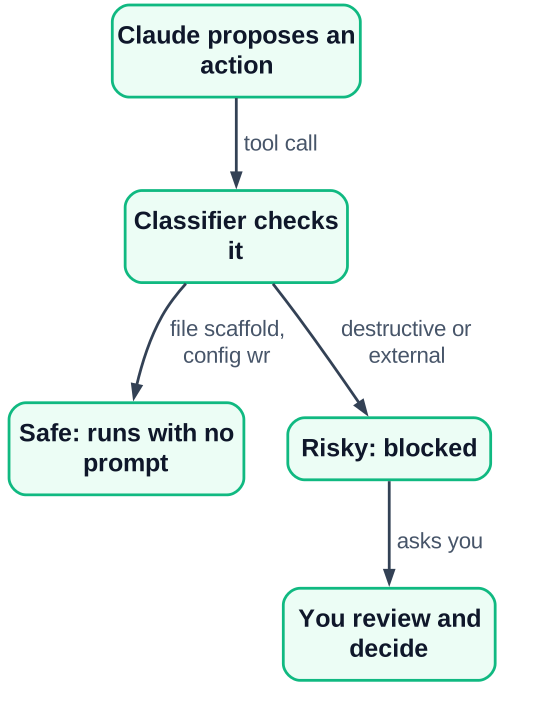
A "tool call" is any action Claude Code takes for you, like writing a file or running a command. The classifier is a check that labels each of those actions before it runs. Here is how the three cases differ:
- Manual approval: Claude Code stops before each file write or command and waits for you to say yes.
- Auto mode: actions the classifier judges safe run straight away, with no prompt.
- Blocked actions: anything that cannot be undone, deletes data or reaches outside your machine stays stopped.
At launch it worked with Claude Sonnet 4.6 and Opus 4.6 (check the docs for newer models), and it reached all users on July 10, 2026, according to the Claude blog. Since Aug 14, 2026 it has been on by default for Pro, Max and Team plans, while Enterprise teams opt in, as The Decoder reports.
Check your plan and version first
Auto mode needs a Pro, Max, Team or Enterprise plan and a recent Claude Code version, and the setup command has a higher minimum than the mode itself, per the Claude Code docs.
Most students on Pro, Max or Team with default settings only need v2.1.228. Find your situation in the table (docs).
| Your situation | Minimum version |
|---|---|
| Pro, Max or Team, default settings | v2.1.228 |
| Enterprise or an API key | v2.1.283 |
Telemetry turned off, and you want /auto-mode-setup | v2.1.304 |
Check what you have installed:
claude --versionIf the number is lower than the one you need, run claude update in your terminal. If that command is not found, reinstall Claude Code the same way you first installed it. Then run the version check again before moving on.
Should your plan be the problem, compare what each plan costs in your country before you upgrade. I broke down the rupee numbers for Indian students in this Claude Pro price guide.
Enable auto mode in the terminal, Desktop or VS Code
In the terminal you start Claude Code with claude --enable-auto-mode and cycle to the mode with Shift+Tab, while Desktop and VS Code use a settings dropdown, as the Claude blog describes.
Open your project folder
Use
cdto move into the folder that holds your project, not your home folder.Start with the flag
Run
claude --enable-auto-mode. This makes auto mode one of the modes you can pick.Press Shift+Tab
Each press moves to the next permission mode. Stop when the screen shows auto mode as the current mode.
Or use Desktop or VS Code
Go to Settings > Claude Code, open the permission mode dropdown and pick auto mode.
Confirm the current mode
Because some plans ship with it on by default, look at which mode is selected instead of assuming.
Run /auto-mode-setup on your project
The guided setup reads your project files and recent session commands, then drafts rules that you accept or discard, according to the configuration docs.
Before you run it, keep three safety rules in mind: do not use it on a repo that holds real secrets such as live API keys, commit after each working step, and read the diff with git diff before you push. Type /auto-mode-setup inside a Claude Code session. It looks at these sources:
- your
CLAUDE.mdandREADME - config files in the project
- your git remotes, which tell it where your code is hosted
- commands from your recent sessions, but never the messages you typed
Nothing is saved until you say yes. If you accept, the draft goes into ~/.claude/settings.json. If you discard it, your settings stay as they were.
The best time to run it is when auto mode keeps blocking steps you know are safe. The setup gives the classifier context about your project, which cuts down those false alarms.
Worked example: a student CRUD Express project
On a small Express (or Django) CRUD project, the setup drafts an autoMode.environment list, and file scaffolding, config writes and CRUD route stubs then run without a prompt, following the flow in the docs.
Take an illustrative project called notes-api. It is a plain Express app with a README, a package.json and a GitHub remote. Here are the commands, in order:
# start Claude Code inside notes-api
claude --enable-auto-mode
# inside the Claude Code session
/auto-mode-setup
# back in a normal terminal
claude auto-mode defaults
claude auto-mode config
From the README and the git remote, the draft might look like this. The organization and repo names are made up for the example:
{
  "autoMode": {
    "environment": [
      "$defaults",
      "Organization: example-student-org",
      "Source control: github.com/example-student-org/notes-api"
    ]
  }
}
The "$defaults" line keeps Anthropic's built-in rules in place. The other two lines tell the classifier who owns the code and where it lives.
This walkthrough shows the behaviour you should expect from the docs, not output from a tested run, and no speed or prompt-count number is claimed. Here is what that means for the boring parts of the assignment:
| Boilerplate task | What auto mode does |
|---|---|
Create routes/, models/ and empty files | Runs without a prompt, since it is a local file write |
Write .env.example and a config file | Runs without a prompt, since it stays inside the project |
| Add CRUD route stubs for notes | Runs without a prompt, as normal code edits |
| Run the test suite | Depends on your rules: if it asks, read the command, then approve it once |
| Push, deploy or delete data | Still blocked, because these reach outside or cannot be undone |
Your results depend on your project and your rules. Watch the first session closely and note which steps ran and which asked.
For Django, the flow is identical: run the same commands in the folder that holds manage.py, and the draft picks up your Django settings files instead.
Verify the saved rules with auto-mode config
Running claude auto-mode config after you save shows the rules that are actually active, so you can catch a wrong entry before it matters, as the docs recommend.
The other command, claude auto-mode defaults, prints only Anthropic's built-in rules. Comparing the two outputs shows exactly what your settings added.
- Run
claude auto-mode defaultsand skim the built-in rules. - Run
claude auto-mode configto see your merged rules. - Find your Source control entry and check the repo URL is yours.
- Confirm
$defaultsis still in the list.
If an entry is wrong, open ~/.claude/settings.json in your editor and fix that line. Then run claude auto-mode config again to see the change take effect.
Keep safety on while you automate
Auto mode lowers the number of prompts but does not replace your own review, so keep commits small and read the diff before you push. The Anthropic engineering post explains how the classifier decides.
Pros
- Far fewer interruptions while scaffolding.
- In Anthropic's own test with 1,053 testers, auto mode caught 89% of dangerous commands while human reviewers caught 13.6% (The Decoder).
Cons
- Those figures come from the vendor's test, not an independent one.
- You see fewer steps as they happen, so mistakes can pile up quietly.
Here, "caught" means a dangerous command was stopped instead of being approved. My own reading of the result is that people get tired of saying yes and stop reading; the test itself does not state that. It also does not say the classifier is perfect. Three rules keep you safe:
- Do not run it on a repo that holds real secrets, like live API keys.
- Do not skip git commits; commit after each working step.
- Do not push without reading the diff with
git diff.
If you later want to see how agents that act on their own are designed, my Claude Duet guide covers a related idea, though you do not need it for this setup.
Common mistakes with Claude Auto Mode setup
Most problems come from an old version, running setup outside the project folder, or accepting a draft without reading it, based on the docs' requirements and flow.
- Outdated version. The setup command is missing or fails. Fix: update, then compare against the minimums in the plan section.
- Wrong folder. The draft has no README or git remote to read, so it comes out empty. Fix:
cdinto the project first. - Accepting the draft blindly. A wrong remote becomes a trusted rule. Fix: read every line, then verify with
claude auto-mode config. - Expecting it to deploy or delete. Those stay blocked by design. Fix: run them yourself, on purpose.
People searching for "Claude automation" often expect it to do the whole project. Auto mode automates approvals, not judgement. It decides whether a step may run, while choosing the right step is still your job. If you want to build automation of your own, try building an AI agent in Python.
Open your current assignment project today, run claude --enable-auto-mode, then /auto-mode-setup, and check the result with claude auto-mode config before you let it scaffold your next CRUD route.