Codex Cloud for Students: Build a Portfolio App Without a Server
Codex Cloud builds and runs your app on OpenAI's computers, so you need no server or Docker. Here is how to ship a portfolio project in one evening, even from your phone.

Say you are a final-year student in Pune. Your laptop hangs when VS Code and Chrome are open together. You want a portfolio project live before campus placements start. The usual advice is to rent a VPS (a computer you rent online to host your app), install Docker (a tool that packages an app so it runs the same everywhere) and fight a deploy script for a weekend. There is now a way to skip all three, and the building keeps going after you close the lid.
Codex Cloud builds and runs your app on computers OpenAI manages, so you need no server, VPS or Docker. You describe the app in plain English, approve the commands it asks to run, and check progress from your phone. You need a paid ChatGPT plan: reusable cloud environments are included from the Plus plan upward, and Plus is enough. I could not confirm the Plus price, so check OpenAI's pricing page before you pay.
Codex Cloud runs your app on OpenAI's computers
At DevDay on 29 September 2026, OpenAI made Codex's cloud environments persistent and reusable, so the work lives on OpenAI's machines and not on your laptop, as TechCrunch reported.
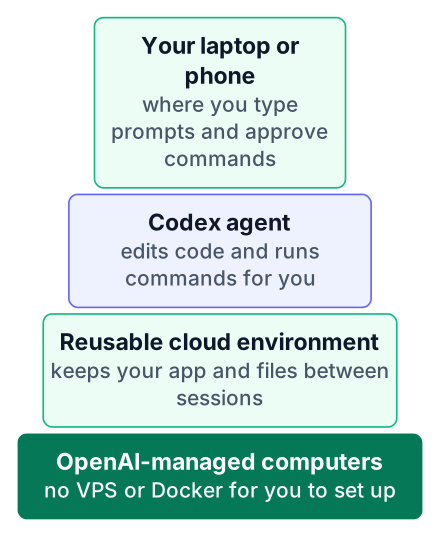
Codex is an agent, which means a program that takes a goal and then writes code and runs commands by itself to reach it. Codex Cloud is the version of that agent that works on remote computers. If you searched for "openai codex cloud", this is the product: the agent edits your files, then shows you what changed.
Persistent means the environment does not reset when you leave it. Reusable means you can open the same setup from a laptop browser or from your phone.
For a fresher, the real gain is time. Setting up a server means fighting SSH keys, open ports and Linux file permissions. Those are useful skills, but they rarely come up in a first portfolio project. The interviewer wants to talk about your app, not your deploy script.
Pick a Plus or Pro plan before you start
Reusable environments are included from Plus upward, according to this DevDay report, so the cheaper Plus plan is enough for a first app and Pro is not needed. Only this one report supports the plan details, so confirm them on OpenAI's pricing page.
| Plan | Monthly price | What it adds for Codex | Right for a first app? |
|---|---|---|---|
| Plus | Not confirmed in my sources, see OpenAI's pricing page | Reusable cloud environments and the redesigned voice CLI | Yes |
| Pro | $200 | Everything in Plus, a bigger Codex allowance than before, and Codex Security Cloud | Not needed |
| Ultrafast | $500 | Faster output, at 300 tokens per second | No |
| Business, Enterprise, Edu | Set by your organisation | Reusable environments plus Codex Security Cloud | Only if your college or company provides it |
Codex Security Cloud scans GitHub repos for security problems and prepares fixes. It is the main feature Plus lacks, and a beginner's task tracker does not need it.
One feature costs nothing at all. Codex Auto-review is free with every ChatGPT account, even without a paid plan.
None of my sources give a rupee price, and none gives the Plus dollar price either, so treat the figures in the table as one report's numbers and confirm them on OpenAI's pricing page. Your Indian card converts dollars at its own rate and adds tax, so the final bill changes from month to month. Check the amount on the checkout screen before you confirm. I walked through the same card-conversion problem in the Claude Pro price in India post.
For anyone searching "codex for students", here is the Plus plan weighed honestly:
Pros
- Includes the reusable cloud environments this whole post depends on
- The lowest paid tier, so the smallest monthly risk
- You can cancel once your portfolio app is done
Cons
- No Codex Security Cloud scanning
- Billed in dollars, so the rupee cost moves with the exchange rate
Check for student credits before you pay
Before you pay, check whether your college email unlocks free developer tools, though none of them is a confirmed Codex discount.
The GitHub Student Developer Pack gives verified students free access to developer tools. Use your GitHub account to store the finished code and keep a portfolio repo that recruiters can open.
My sources do not say OpenAI offers a student discount for Codex, so I will not promise one. Check OpenAI's own pricing page on openai.com before you subscribe, because plans and prices change. If your college has an Edu plan, ask your department, because Edu is on the list of plans with reusable environments.
Describe the app in plain English
A good first prompt names the app, the pages, the tech and what done looks like, so the agent does not guess.
Start with a one-page task tracker. It is small enough to finish in an evening and real enough to explain in an interview. It also needs no backend (a server-side program that stores data), because the browser can save the tasks itself.
Paste this as your first message:
Build a one-page task tracker web app.
Page: one page with a form to add a task, and the task list below it.
Each task has a title and a due date, plus a checkbox to mark it done.
Tech: plain HTML and CSS with vanilla JavaScript.
Save tasks in the browser's localStorage. No backend, no database.
Done means:
- I can add a task and delete it.
- Ticking the checkbox marks a task as done.
- Tasks are still there after I refresh the page.
Tell me how to preview the app, and say if I must push it to GitHub Pages to open it.
Add a README that explains the code in simple English.
Before writing any code, show me your plan as a short list.
That prompt asks for localStorage, the browser's built-in storage that keeps data after a refresh. The last line matters most. It makes the agent explain its approach before it touches a file.
Once the first version works, ask for one change at a time:
Add a filter with two buttons: "All" and "Pending".
Keep the existing code style.
Show me the diff before you change anything.
A diff is the list of lines added and removed. Asking for it keeps each change small enough to read. If you want to see how agents like this work underneath, try building a simple AI agent in Python.
Read the plan, then approve commands one by one
Codex shows what it intends to do and asks before it runs commands, so your job is to read each request and approve only what makes sense, as TechCrunch describes.
For the task tracker, expect a short plan: create the HTML file, add the styles, write the JavaScript, then start a server. The commands should look ordinary. A simple static server such as python3 -m http.server or npx serve is normal. If it adds a test tool, you may see a package install followed by a test run.
Read the plan
Check it matches your prompt. If it adds a database you did not ask for, reject it and say why.
Read each command
Ask yourself what the command does. If you cannot tell, ask Codex to explain it first.
Approve or reject
Ordinary project commands are fine to approve. Reject anything that reaches outside the project folder.
Check the diff
Read the changed lines before you accept them.
Test it yourself
Open the app, add a task, then refresh the page and confirm it is still there.
A suspicious command looks different. Watch for curl piped straight into sh from an unknown website. Be careful with rm -rf pointed at anything outside your project. Never approve a step that asks for your passwords or personal tokens.
The ChatGPT desktop app also has a code review view. TechCrunch says it shows summaries and line-by-line diffs. You can ask Codex to explain a suspicious issue before you post a comment on a GitHub pull request.
Close the laptop and continue from your phone
Because the task runs in the cloud, you can shut the laptop, open the same environment on your phone, watch progress and approve the next command, as this DevDay report explains.
Say you are on a long bus ride from Pune to Mumbai. You start the filter change on your laptop at the bus stand, then put the laptop in your bag. On the bus, you would open Codex on your phone, see the agent waiting for approval to run the tests, read the command and tap approve. That is how the DevDay report describes the flow, and I have not tested it myself on a real journey.
A power cut works the same way. Your laptop battery dying does not stop the task, because nothing was running on the laptop.
Use the phone as a window, not a workbench. Watching and approving on a small screen is easy. Reading a long diff or writing a new prompt is better done on a laptop later.
Once you are comfortable, the new /agents view lets you run several tasks in parallel and follow them on one screen, per TechCrunch.
Common mistakes with Codex Cloud
Most first-time problems come from vague prompts, approving commands without reading them, and treating the output as finished.
- Asking for the whole app at once. A huge prompt produces a huge diff you will not read. Build the smallest working version, then add one feature per message.
- Skipping the approval steps. Run the five-step routine above every time, including the diff, and ask Codex about any line you do not follow.
- Skipping your own testing. The agent can say "done" while a button does nothing. Click through every feature yourself before you call it finished.
- Not saving the code to your own repo. Tools change; see what happened to ChatGPT Canvas. Push the code to GitHub so your project survives any product change.
One honest warning: you still have to understand the code. A TCS or Infosys interviewer may ask why you used localStorage, or how the delete button finds the right task. "Codex wrote it" is not an answer. Read the README it wrote, then explain the app aloud to a friend until you can do it without notes.
Open Codex Cloud today, paste the first prompt from this post for a one-page task tracker, approve the commands it asks for, and push the finished code to a GitHub repo you own, then turn on GitHub Pages using the steps below to get a live link.
Put the app online for free
A localStorage app is just static files (HTML and CSS for the look, JavaScript for the behaviour), so it needs free static hosting and no server of your own. GitHub Pages does this from the repo you already have.
Push the code
Ask Codex to commit the files to a new GitHub repo you own, with index.html in the top folder.
Open the repo settings
On GitHub, go to Settings and then Pages.
Choose the branch
Under Build and deployment, pick Deploy from a branch, select main and the root folder, then save.
Wait a minute or two
GitHub shows a public address at the top of the Pages screen once the site is built.
Test the public link
Open it in a private window, add a task, then refresh the page and confirm the task is still there.
Put that public address on your resume next to the repo link, so a recruiter can click the app and not only read the code.