10 Beginner JavaScript Project Ideas That Teach Real Skills
A random quote generator taught me more than ten todo apps ever could. These 10 beginner JavaScript projects each build one real skill, from fetch and async/await to game logic and array methods, with full code included.

Say you have built three todo apps and still hear nothing back. Each one shows the same skill again, so a reviewer opening your GitHub learns little new. Start with one small project that is different, a page that shows a random quote, and the full code is below.
Pick each beginner JavaScript project for the one skill it teaches, not for how impressive it looks. Build one fetch-based app first, because that skill sits behind weather apps and dashboards. Then add timers, storage, game logic and events. Host everything free on GitHub Pages, Vercel or Netlify.
Random quote generator teaches fetch and async/await
One button, one API call and one rendered result teach the loop every data-driven web app uses: request, wait, handle the failure, show the data. Fetch is the browser's built-in function for asking a server for data. The MDN Fetch API documentation explains that the promise it returns does not reject on HTTP errors like a 404. It only rejects when the request cannot be made at all, such as when the network is down.
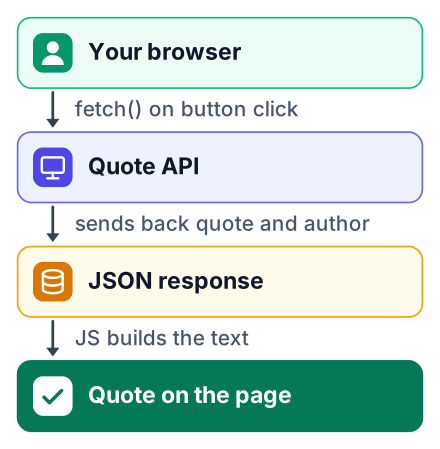
This example uses the random-quote endpoint from DummyJSON, a free practice API that needs no key. Public APIs change or shut down without warning. If this one stops answering, swap the URL for another quote API and update the two field names in the code.
Here is what happens when you click the button:
Browser sends a request
Your script calls
fetch()with the quote API's URL.Quote API answers
The server sends back a status code and a body of JSON text.
Script reads the JSON
response.json()turns that text into a JavaScript object.Page shows the quote
The script puts the quote and author into a paragraph on the page.
Create a folder with three files. First, index.html:
<!DOCTYPE html>
<html lang="en">
<head>
  <meta charset="UTF-8">
  <meta name="viewport" content="width=device-width, initial-scale=1.0">
  <title>Random Quote</title>
  <link rel="stylesheet" href="style.css">
</head>
<body>
  <main class="card">
    <p id="quote">Press the button to get a quote.</p>
    <p id="status" role="status"></p>
    <button id="new-quote">New quote</button>
  </main>
  <script src="script.js"></script>
</body>
</html>
Then style.css, which centres one card on the page:
body {
  font-family: system-ui, sans-serif;
  display: grid;
  place-items: center;
  min-height: 100vh;
  margin: 0;
  background: #f4f4f5;
}
.card {
  max-width: 32rem;
  padding: 2rem;
  background: #fff;
  border-radius: 12px;
  box-shadow: 0 4px 16px rgba(0, 0, 0, 0.08);
}
#quote {
  font-size: 1.25rem;
  line-height: 1.5;
}
#status {
  color: #b91c1c;
  min-height: 1.5em;
}
button {
  padding: 0.6rem 1.2rem;
  font-size: 1rem;
  cursor: pointer;
}
button:disabled { opacity: 0.6; cursor: wait; }
And script.js, using async/await with try/catch:
const API_URL = "https://dummyjson.com/quotes/random";
const quoteEl = document.getElementById("quote");
const statusEl = document.getElementById("status");
const button = document.getElementById("new-quote");
async function getQuote() {
  statusEl.textContent = "Loading...";
  button.disabled = true;
  try {
    const response = await fetch(API_URL);
    // fetch does not throw on 404 or 500, so check it yourself
    if (!response.ok) {
      throw new Error(`HTTP ${response.status}`);
    }
    const data = await response.json();
    // the API returns the fields quote and author
    quoteEl.textContent = `"${data.quote}" — ${data.author}`;
    statusEl.textContent = "";
  } catch (error) {
    quoteEl.textContent = "";
    statusEl.textContent = "Could not load a quote. Check your connection and try again.";
    console.error(error);
  } finally {
    button.disabled = false;
  }
}
button.addEventListener("click", getQuote);
You will also meet the older .then() style in tutorials and job codebases. This version does the same work:
function getQuoteThen() {
  statusEl.textContent = "Loading...";
  fetch(API_URL)
    .then((response) => {
      if (!response.ok) throw new Error(`HTTP ${response.status}`);
      return response.json();
    })
    .then((data) => {
      // fields: quote and author
      quoteEl.textContent = `"${data.quote}" — ${data.author}`;
      statusEl.textContent = "";
    })
    .catch((error) => {
      statusEl.textContent = "Could not load a quote. Check your connection and try again.";
      console.error(error);
    });
}
A promise is a value that arrives later. Read the two side by side. await pauses the function until the promise finishes, while each .then() runs once the step before it finishes. The response.ok check appears in both, because without it a 404 page gets parsed as a quote and your page shows "undefined".
Open index.html in a browser and click the button. When it works, you see one line in this shape:
"Genius is one percent inspiration and ninety-nine percent perspiration." — Thomas EdisonTurn off your Wi-Fi and click again. The quote disappears and the red status line reads:
Could not load a quote. Check your connection and try again.Countdown timer teaches Date and setInterval
A countdown makes you work with real dates and a loop that must be stopped on purpose. Subtracting one Date from another gives you milliseconds. Your job is to turn that into days and hours, then minutes and seconds. The hackr.io project list also recommends it for timer practice.
Pick a target that matters to you. New Year's Day works for readers in India and the US alike, or use the date of your next semester exam.
const target = new Date("2027-01-01T00:00:00");
const timerEl = document.getElementById("timer");
const intervalId = setInterval(() => {
  const msLeft = target - Date.now();
  if (msLeft <= 0) {
    clearInterval(intervalId); // stop the loop on purpose
    timerEl.textContent = "Happy New Year!";
    return;
  }
  const days = Math.floor(msLeft / (1000 * 60 * 60 * 24));
  const hours = Math.floor((msLeft / (1000 * 60 * 60)) % 24);
  const minutes = Math.floor((msLeft / (1000 * 60)) % 60);
  const seconds = Math.floor((msLeft / 1000) % 60);
  timerEl.textContent = `${days}d ${hours}h ${minutes}m ${seconds}s`;
}, 1000);
The common bug is forgetting clearInterval. The timer then keeps firing after zero and shows negative numbers. A second bug appears when a "Start" button creates a new interval on every click, so the clock speeds up. Store the interval ID and clear the old one before you start another.
For an extension, build a stopwatch. It counts up instead of down and needs pause and reset buttons, which means tracking how much time passed before each pause.
To-do list with localStorage, and a quiz app, teach saving data and branching logic
Data that survives a page refresh and a score that depends on the user's answers are the two ideas that turn a static page into an app. The to-do list teaches the first and the quiz teaches the second, a pairing the hackr.io list makes too. Both start from the same habit: keep your data in an array, then redraw the page from that array.
For the todo app, localStorage only stores text. You convert your array with JSON.stringify before saving and JSON.parse after loading:
const todos = JSON.parse(localStorage.getItem("todos")) ?? [];
function save() {
  localStorage.setItem("todos", JSON.stringify(todos));
}
Many beginners say todo apps are overdone. I agree, with one exception: build it once, and only if it saves data and has one feature you designed yourself. Due dates work well, and so do filters for "done" and "not done". That feature is what you talk about in an interview. When you outgrow one browser's storage, the next step is a real database, covered in how to add a database to a web app on a free tier.
Pros
- Quick to finish, so you practise the whole build-and-deploy cycle.
- Familiar, so you focus on code instead of figuring out what the app should do.
Cons
- Almost every beginner portfolio already has one.
- A plain version without saving or a custom feature shows a reviewer nothing new.
The quiz keeps its questions in one array, and each item in it is an object. Each object holds the question, the choices and the index of the right answer. When the user clicks a choice, an if compares it with the answer and adds to the score. After the last question, hide the quiz and show a result screen with the final score and a "Try again" button.
const questions = [
  { text: "Which keyword declares a constant?", choices: ["var", "const", "def"], answer: 1 },
  { text: "What does JSON.parse return?", choices: ["A string", "An object", "A promise"], answer: 1 }
];
let score = 0;
function check(questionIndex, choiceIndex) {
  if (choiceIndex === questions[questionIndex].answer) score++;
}
Calculator and tic-tac-toe teach state and validation
Both projects force you to track what the program currently 'knows' and to reject input that makes no sense. The hackr.io list files the calculator under input validation and tic-tac-toe under game logic. State is the information your program must remember right now, stored in variables.
In a calculator, the state is the current number and the chosen operator. Validation means refusing bad input. Pressing two operators in a row should replace the first one, not crash. Dividing by zero should show a clear message instead of "Infinity".
Tic-tac-toe holds its state in one array of nine cells plus a variable for whose turn it is. A flat array is easier for beginners than a grid of rows. After every move, check the board against a list of winning lines:
const winningLines = [
  [0, 1, 2], [3, 4, 5], [6, 7, 8], // rows
  [0, 3, 6], [1, 4, 7], [2, 5, 8], // columns
  [0, 4, 8], [2, 4, 6]             // diagonals
];
function hasWinner(board) {
  return winningLines.some(([a, b, c]) =>
    board[a] && board[a] === board[b] && board[a] === board[c]
  );
}
Don't forget the draw: every cell full and no winner. Clicking a filled cell should also do nothing.
Drum kit teaches events and audio
Keyboard and click events are how a page reacts to the user, and a drum kit lets you hear that working. It is a common choice for teaching events and audio, as the hackr.io list shows. You listen for keydown, read event.key and look up a sound in an object.
const sounds = {
  a: "sounds/kick.wav",
  s: "sounds/snare.wav",
  d: "sounds/hihat.wav"
};
document.addEventListener("keydown", (event) => {
  const src = sounds[event.key];
  if (!src) return;
  new Audio(src).play();
  const pad = document.querySelector(`[data-key="${event.key}"]`);
  pad?.classList.add("hit");
  setTimeout(() => pad?.classList.remove("hit"), 100);
});
The hit class gives a short visual flash, such as a scaled-up pad with a coloured border. Add click handlers on each pad too, so the kit works on a phone without a keyboard.
Use sound files you have the right to publish. Look for samples marked public domain or under a Creative Commons licence, and read the licence before you deploy. Credit the source in your README if the licence asks for it.
Weather app and GitHub profile finder reuse the fetch pattern
Once the quote app works, these two add the next step: sending user input to an API and rendering a more complex response. The hackr.io weather example uses the OpenWeatherMap API with fetch. The new skill is the query string, the part of a URL after ? that carries the user's city name.
Weather responses are nested JSON. The temperature sits inside one object, the description inside an array inside another. Add a loading state while you wait, and an error state for a misspelled city.
const city = encodeURIComponent(input.value.trim());
const url = `https://api.openweathermap.org/data/2.5/weather?q=${city}&units=metric&appid=YOUR_KEY`;
const response = await fetch(url);
if (!response.ok) throw new Error(`HTTP ${response.status}`);
const data = await response.json();
console.log(data.main.temp, data.weather[0].description);
The GitHub profile finder calls the public GitHub users API with a username. Show the avatar, the public repo count and the follower count. When the user does not exist, the API answers with a 404, so your response.ok check from the quote app handles it.
const res = await fetch(`https://api.github.com/users/${username}`);
if (res.status === 404) {
  statusEl.textContent = "No such user.";
  return;
}
const user = await res.json();
console.log(user.avatar_url, user.public_repos, user.followers);Expense tracker teaches map, filter and reduce
The tenth project is an expense tracker. It teaches array methods. Use map to draw each expense and filter to show one category. Then reduce adds up the total. Save the array to localStorage as you did with the todo list.
const total = expenses.reduce((sum, item) => sum + item.amount, 0);Here are all ten JavaScript mini projects for beginners covered above, with the build order I suggest:
| Project | Main skill | Difficulty | Build order |
|---|---|---|---|
| Random quote generator | fetch, async/await, error handling | Easy | First |
| Countdown timer | Date, setInterval, clearInterval | Easy | Second |
| To-do list | localStorage, JSON, DOM updates | Easy | Third |
| Quiz app | Conditional logic, scoring | Easy | Fourth |
| Calculator | State, input validation | Medium | Fifth |
| Tic-tac-toe | Game logic, win checks | Medium | Sixth |
| Drum kit | Keyboard events, Audio | Easy | Seventh |
| Weather app | Query strings, nested JSON | Medium | Eighth |
| GitHub profile finder | User input to API, 404 handling | Medium | Ninth |
| Expense tracker | map, filter, reduce | Medium | Tenth |
If you also write Python, these Python project ideas take a different route: they solve real-world problems, while these JavaScript project ideas build browser skills. And when you move to React, the same fetch pattern carries over, as shown in connecting a React frontend to an API.
Host free on GitHub Pages, Vercel or Netlify
All three host a static JavaScript project at no cost, and GitHub Pages is the simplest start because it needs only a public repository. The free-tier limits below come from a 2026 DEV Community guide to free deployment:
| Host | Free tier | Source |
|---|---|---|
| Vercel | 100GB bandwidth, unlimited projects, automatic SSL | DEV Community |
| Netlify | 100GB bandwidth, 300 build minutes per month | DEV Community |
| GitHub Pages | Unlimited on public repositories | DEV Community |
Free tiers change, so check each host's pricing page before you rely on a limit. Whether a card is asked for can change too, so check the sign-up page before you start.
To deploy on GitHub Pages:
- Push your project to a public GitHub repository, with
index.htmlat the top level. - Open the repository's Settings tab.
- Choose Pages in the left sidebar.
- Under "Build and deployment", pick "Deploy from a branch", select
mainand the root folder, then save. - Wait a minute or two, then open the live URL shown at the top of the Pages screen.
Which JavaScript project should you build first?
Build in order of skill, not excitement: fetch first, then timers and storage, then logic and events, and add one feature of your own to each, the approach ones.com recommends for beginner web projects. Here is a feature idea for each stage:
- Quote generator: add a "Copy quote" button.
- Countdown and to-do list: add a pause button, then due dates.
- Quiz and calculator: add a time limit per question, then keyboard input.
- Tic-tac-toe and drum kit: keep a score across rounds, then record and replay a beat.
- Weather, GitHub finder and expense tracker: save recent searches, then add a monthly filter.
A finished, deployed project with a rough design is worth more than a perfect one stuck on your laptop. A reviewer can click a live link in seconds. Give each one a short README so they know what to look at; this guide to writing a project README shows what to include.
Which project will you add your own feature to, and what will that feature be?
Create one folder today, paste in the quote generator code, deploy it to GitHub Pages and put the live link at the top of your resume or GitHub profile. Write the link as plain text next to the project name, so a reviewer can open it in one click.