How to Connect Gmail to Claude: Find Emails and Draft Replies
Connect Gmail to Claude from the + menu in a chat: six clicks, no install, works on the free plan. Ask in plain English to find emails, summarize threads, and draft replies. Here's every prompt that works and what happens to your email data.
Say you have forty unread emails. Some are from a professor, a few are from an internship recruiter, and the rest are a busy group project. One of them holds the assignment deadline, and you cannot find it. Searching by hand eats ten minutes. Asking Claude takes one sentence, once Gmail is connected.
You connect Gmail to Claude from the + menu in a chat: open Connectors, toggle Gmail, sign in with Google and approve the permissions. After that, you ask in plain English. Find an email. Shorten a thread. Write a draft reply. The rest of this post shows the prompts that work and what happens to your email data.
Check your plan and account before you start
The Gmail connector is available on every Claude plan including Free, so you do not need to subscribe to Claude just to try it. The Claude pricing page lists "Connectors: Yes" on every plan.
| Plan | Connectors | Price (from claude.com/pricing) |
|---|---|---|
| Free | Yes | $0 |
| Pro | Yes | $20/month, or $17/month billed annually ($200 upfront) |
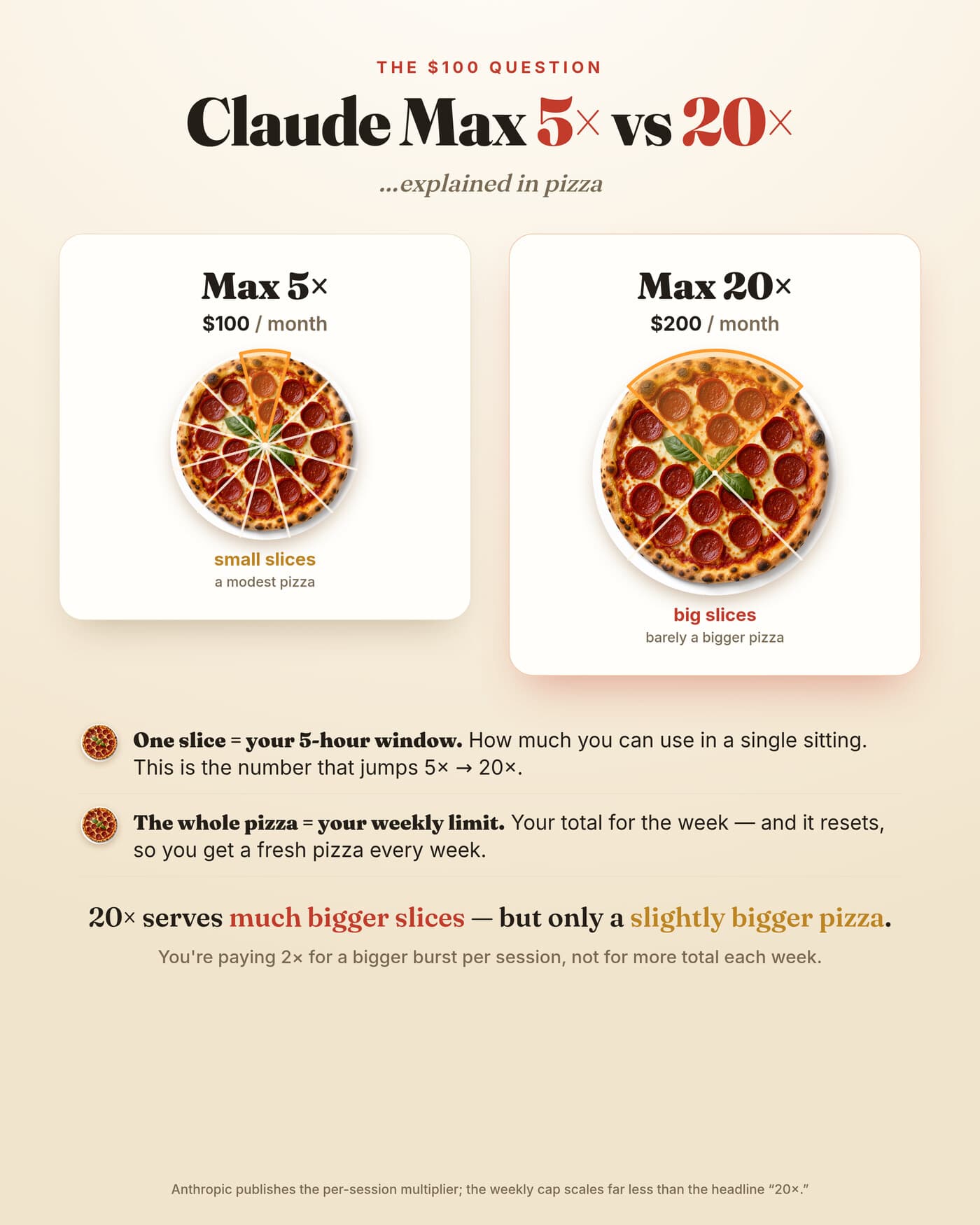
Max and Ultra cost more; see the pricing page. What a paid plan buys you is more usage. Searching a busy inbox uses up messages faster than a normal chat. If you hit the limit often, read my notes on how to stretch Claude Pro's limits as a student. For heavier use, here is Max 5x vs 20x explained with pizza.
You subscribe and set up through Claude, not through Gmail. Gmail is one of the Google Workspace connectors. The other two are Calendar and Drive, and they connect the same way.
Connect Gmail from the + menu
The whole setup is six steps inside a Claude chat, and nothing is installed in Gmail. If you do not see Connectors, update the app or try claude.ai in a browser. The steps below follow Anthropic's help page for Google Workspace connectors.
Open Claude
Use claude.ai in a browser or the Claude Desktop app. Start a new chat.
Click the + sign
It sits at the bottom left of the message box.
Hover over Connectors
A list of available connectors opens.
Toggle Gmail on
Claude asks you to sign in.
Sign in with Google
Pick the Google account whose inbox you want Claude to see.
Approve the OAuth screen
Read the list of permissions, then click Allow.
OAuth is Google's "allow this app" screen. It tells you exactly what Claude will be able to do in your account. That list includes sending email for you, so read it before you click. If any line surprises you, cancel, then come back after you have read this post.
The same + menu works in Claude Desktop, and the connection works in both once you approve it.
Find emails by describing them
Claude searches your inbox from a plain-language description, so you do not need Gmail search operators. Behind the scenes, the Gmail connector lets Claude search your conversations and then open one message to read it in full.
Here is what a few prompts look like in practice:
| What you type | What Claude is meant to do |
|---|---|
| "Find the email from my professor about the assignment deadline" | Searches for threads from that sender that mention a deadline, opens the best match and quotes the date. |
| "What was the last message from the internship recruiter?" | Finds the most recent thread with the recruiter and tells you what they asked for. |
| "Did anyone in my project group send the slides this week?" | Looks for recent group emails that mention slides and lists who sent what. |
This example shows how a reply can look (invented for illustration, your wording will differ):
You: Find the email from my professor about the assignment deadline.
Claude: Found it. Prof. Rao, "Assignment 3 details", sent Tuesday.
The deadline is Friday 5 pm, submitted through the course portal.
Claude reads the text of your emails but not what is inside attachments. According to the Google Workspace connectors help page, it sees attachment metadata only, such as the file name. If the deadline lives inside a PDF, Claude can tell you the PDF exists. It cannot tell you what the PDF says.
Summarize a long thread into the decision and the next step
Asking for a thread summary works best when you also say what you need out of it, such as the deadline or who owes a reply. A bare "summarize this thread" gets you a neat paragraph that may skip the one date you care about.
Say your group project thread has grown to dozens of messages. People changed the topic twice and moved the meeting once. Somebody promised to book a room. A sharper prompt pulls out exactly that:
Summarize the "Final project" thread from my group.
List: every date mentioned, who agreed to do which task,
and any question nobody has answered yet.
Asking for a list also makes the answer easy to scan on a phone. You can follow up in the same chat: "Who still owes a reply?"
Draft a reply and save it to Gmail
Claude can write a reply and store it in your Gmail Drafts folder, so you read and edit it before anything goes out. Try: "Draft a reply to this and save it as a draft."
That prompt makes Claude save a draft in Gmail. The connector can also send and forward email, as listed on the Gmail connector page, which is a separate step from saving a draft. A draft never leaves your account. The send tools do, which is why Claude stops for your explicit approval before using them. That approval is the default setting, and I would leave it that way.
Give Claude three things in the prompt and the draft improves a lot:
- Tone: "polite and short" for a recruiter, "casual" for your group.
- Length: "three sentences at most" stops it from writing an essay.
- What to promise: "say I will send the code by Friday, nothing more." Claude cannot know your real schedule.
Pros
- Saves time on routine replies, like confirming a meeting.
- Gives you a clean starting point when you do not know how to word something.
- The draft sits in Gmail, so you can finish it later on your phone.
Cons
- It sounds like you only after you edit it.
- It can state a wrong fact or date with full confidence.
- The tone can come out too formal for a friend or too casual for a professor.
Where your email data goes and who can read it
Email Claude retrieves is stored on Anthropic's servers with that chat, is not used to train models, and is deleted when you delete the chat, per the Google Workspace connectors help page. The no-training rule covers data from the Gmail connector, and from the Drive and Calendar connectors too.
For readers in India, this means your email leaves Google's servers and is copied to Anthropic's. The help page does not promise it stays in India, so assume it does not. US readers face the same trade: a second company now holds a copy of what Claude reads. The pricing page lists dollars only, so check the rupee amount at checkout before you pay. A college .ac.in or Google Workspace for Education account may also be blocked, as the college section below explains.
My advice: do not connect an inbox full of other people's sensitive data. Bank statements, ID numbers and a parent's medical emails are the obvious ones. To cut the link later, open Claude's settings, find Connectors and disconnect Gmail. You can also remove Claude from your Google account's third-party access page.
College Gmail accounts need an admin to trust Claude
If your college runs your email on Google Workspace, the sign-in may be blocked until the college admin allows Claude. The help page says Workspace admins may need to add Claude as a trusted OAuth app in admin.google.com.
A second gate applies only if your college pays for Claude on a Team or Enterprise plan. There, an Owner or Primary Owner must switch on connectors for the whole organization before anyone can sign in.
You can send your IT office a short message like this:
Hello, I would like to connect my college Gmail to Claude (by Anthropic) using its Gmail connector. Sign-in is blocked. Could you add Claude as a trusted OAuth app in the Google Admin console? Anthropic's instructions are at support.claude.com. Thank you.
- Do: ask politely and accept a no. Colleges protect student records.
- Do: use your personal Gmail if the college says no.
- Don't: forward all your college mail to a personal account just to get around the block.
Common mistakes when connecting Gmail to Claude
Most failed setups come from a blocked college account, a skipped permission, or expecting Claude to read attachments. Here is the full list I would check:
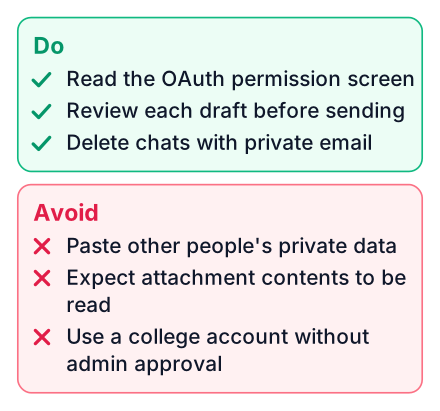
- Clicking Allow without reading the OAuth screen. You are giving send permission, so know it.
- Using a college account without admin approval. The sign-in fails, and it is not a bug on your side.
- Asking about the contents of a PDF. Claude sees the file name, not the pages.
- Trusting a summary without checking it. Dates are where errors hide.
- Approving a send without reading the draft. The approval prompt only helps if you read what it shows you.
If you would rather talk than type, the same prompts work out loud with Claude's voice mode.
Connect Gmail today, then ask Claude to find one old email and write a draft reply you do not send. Check the draft in Gmail's Drafts folder. Then delete the chat if it holds anything private. If sign-in is blocked, see the college accounts section above.