How to Fix Deployment Errors: Read the Bottom of the Log First
Deployment errors look like another language, but the fix is always the same: scroll to the bottom, read the red line, and fix one thing. This guide walks through the three most common failures and the read-fix-push loop that handles every build.
You push the code, the build screen goes red or orange, and a wall of text scrolls past. Most first-time builders freeze right there. The log looks like it is speaking another language.
Scroll straight to the bottom of the log, find the first red Error line, and fix only the one thing it names. Then push again. That read-fix-push loop is the whole skill. You do not need to understand every line, just the one that broke the build.
Scroll to the bottom of the log first
The bottom of the log holds the newest lines and usually the first error that broke the build. A failed build shows a couple hundred normal lines before the error appears, so reading from the top wastes your time. Seekvana's guide to reading deployment logs teaches this bottom-first method: the last lines may be a generic wrapper like "Build failed," and the real cause sits a few lines above it.
Think of the log as a story told in order. The build runs, installs dependencies, starts the server, and then stops. The error is the climax, and it is always near the end. Scroll down, find the red text, and start there.
Read the red line, then read the line above it
A red Error line that says "Build failed" is only the wrapper; the true cause is usually the line just above it, like ModuleNotFoundError. The wrapper tells you the build stopped. The line above tells you why.
==> Build failed
--> ModuleNotFoundError: No module named 'flask'
Notice how the error names the exact module. The error name points to the exact file and line, so you do not have to guess. Seekvana's guide calls this the difference between the wrapper and the real cause. Read the error name, find the file it mentions, and open that file.
Fix the missing module or dependency
When the error names a module it cannot find, install that dependency and confirm it is listed in your dependency file. The server installs packages from that file, not from your local machine, so a package you installed locally may be missing there.
Here is a Python example. The log shows:
ModuleNotFoundError: No module named 'flask'The fix has two parts. First, install the package:
pip install flaskSecond, add it to requirements.txt so the server installs it too. Render's troubleshooting docs list this exact error and its cause: a dependency or file path is wrong.
The same idea shows up in Node projects, but the error looks different: a version mismatch, not a missing package. If your log says SyntaxError: Unexpected token '??=', your Node version is too old to parse the code. The fix is to update the engines field in package.json:
"engines": { "node": "18.x" }Then push again. The server reads that field and installs the right Node version.
Set environment variables on the platform, not in .env
Place environment variables that a deployed app needs in the hosting platform's dashboard, because the server never sees your local .env file. This is the second most common beginner failure, and it shows up as a crash after startup, not during the build.
Say your app needs a Stripe API key. Locally, you put it in .env and it works. On Render, the build succeeds, the server starts, and then the log shows:
KeyError: 'STRIPE_SECRET_KEY'The fix: open the service's Environment page in the Render dashboard, add the key there, and click Redeploy. Render's docs explain that missing environment variables are set on the service's Environment page, not in .env.
The dashboard holds the keys, and the server reads them from there.
Fix the port binding before the health check
Bind your app to 0.0.0.0 and the PORT environment variable (default 10000 on Render) so the platform can reach it on startup. If you skip this, the log shows "Port scan timeout reached" and the build fails even though your code is fine.
For Node, change the listen line:
app.listen(process.env.PORT || 10000);For Python, change the run line:
app.run(host='0.0.0.0', port=PORT)Render's troubleshooting docs cover this exact error. They also list related runtime issues: "Out of memory" errors and the WEB_CONCURRENCY setting for Python and Ruby apps. The build-vs-runtime distinction matters here:
| Build errors | Runtime errors |
|---|---|
| Happen during the build phase | Happen after the server starts |
| Missing dependency, wrong file path, old Node version | Missing environment variable, wrong port binding, out of memory |
| Log shows "Build failed" | Log shows a crash after startup lines |
| Fix by editing dependency files or code | Fix by editing the dashboard or runtime settings |
When the build succeeds but the app crashes, look for runtime errors. When the build fails, look for dependency or path problems.
Match the HTTP status code to the failed request
A running app that returns 500, 404, 502, 503, or 504 is telling you which layer of the request failed. MDN's HTTP status code reference maps each one to a meaning: 500 is a generic server failure, 404 means the resource is missing, 502 is a bad response from a gateway, 503 means the server is overloaded, and 504 is a gateway timeout.
These codes appear in the log lines after startup. If you see 500, check the logs for the stack trace and look for the line that mentions your code, not the framework's. That's where the missing variable or dependency will be named. A 404 means your route or file path is wrong. A 502 or 504 points to the server or gateway, not your code.
When you see a status code, read the log lines around it. The code names the layer. The lines around it name the specific file.
The read-fix-push loop is the skill that lasts
Every future deploy will have a different error, but the habit of reading the bottom line, fixing one thing, and pushing again will get you through most of them. Seekvana's guide calls this the read-fix-push-watch loop, and it is the whole job.
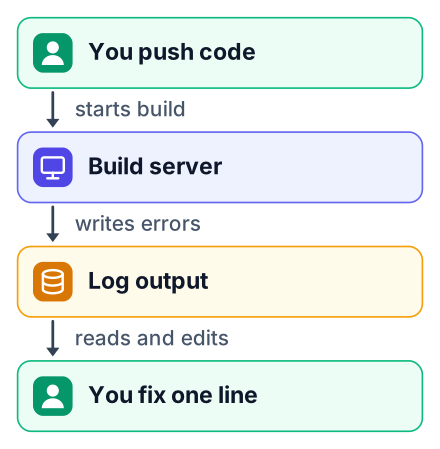
Scroll to the bottom
Find the newest lines and the first red error.
Read the error name
Look at the line above the wrapper for the real cause.
Fix that one file
Change the dependency, the environment variable, or the code.
Push again
Commit and push. The build restarts.
Watch the build
Scroll to the bottom of the new log and check the result.
Here is one realistic session that ties it together. You push a Python app. The log shows "Build failed," and above it, ModuleNotFoundError: No module named 'flask'. You add flask to requirements.txt and push. The build passes. Then the server crashes with KeyError: 'STRIPE_SECRET_KEY'. You add the key in the Render Environment tab and redeploy. The server starts, but the health check times out. You change the port binding to 0.0.0.0 and push. Now the app runs.
Three errors, three fixes, three pushes. None of them required memorizing anything.
Three errors, three fixes, three pushes. None of them required memorizing anything. Break your next deploy on purpose: remove a package from package.json, or leave out an environment variable, and read the log to find out exactly what you broke. Do that twice and the panic will be gone. When you are ready to deploy something new, this guide walks through the first free deploy. A clear README makes the next push easier to debug.