ChatGPT group chats are going read-only: export your history before it locks
ChatGPT group chats are being retired. OpenAI stopped new groups on 9 July 2026, and existing chats are expected to become read-only. Request a data export now through Settings > Data controls, before your history locks.
OpenAI stopped new ChatGPT group chats on 9 July 2026, and its retirement of the group chat feature has already made UK group chats read-only. No date is announced yet for India or the US, so export your history now, because the date can change. If your project lives in one group chat, that history may be your only copy.
Request an export from Settings > Data controls before your group chat locks. Reported by eesel and Lilach Bullock: UK group chats are already read-only, and India and US dates are not announced. The export arrives by email as a ZIP file. Then move ongoing project work to a shared document, or to Teams if your school or company has a Business or Enterprise workspace.
ChatGPT group chats are going read-only
OpenAI began retiring group chats on 9 July 2026, so no one can create a group, convert a chat into one, or join by invite link, according to eesel's summary of OpenAI's notice. UK chats are already read-only. India and US dates are not announced.
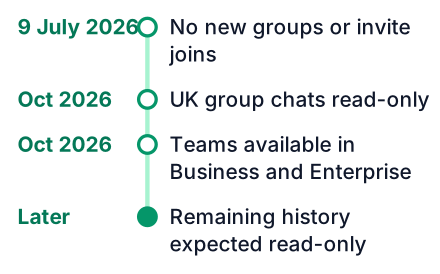
The timing depends on where you live. Lilach Bullock reports that UK group chats were already read-only as of October 2026. In other countries, including India and the US, people already in a group can keep messaging "while messaging is enabled." That wording describes a transition period, and nothing promises how long it lasts.
A note on sources: I could not open OpenAI's own notice, so these dates come from eesel and Lilach Bullock, who both quote it. If a date matters for a deadline, check OpenAI's notice too.
Check whether you can export on your own
Self-service export works on personal ChatGPT plans and on eligible Edu workspaces, but not in Business, Enterprise or Healthcare, as Lilach Bullock's breakdown lists. If you are on one of those managed plans, the workspace owner has to request the export for you.
- You can press the button yourself: personal ChatGPT plans (Free, Go, Plus or Pro) and eligible Edu workspaces.
- You must ask the workspace owner: Business, Enterprise and Healthcare.
- Another route: the OpenAI Privacy Portal, where you can also file a request for your data.
College accounts are the tricky case. Your university might give you an Edu workspace, or it might run a managed workspace through its IT team. Open Settings and look at the workspace name before you assume anything. If the export option is missing, email your college IT desk this week instead of waiting.
Curious what data ChatGPT keeps about you in the first place? I covered that in how ChatGPT knows your name.
Request the export in five clicks
The request takes under a minute, and then you wait for an email. Here is the full path, following Coursiv's export walkthrough:
Open Settings
Click your profile name or picture in ChatGPT, then choose Settings.
Open Data controls
Pick Data controls from the menu on the left.
Choose Export data
Click Export next to "Export data."
Confirm the export
Press Confirm export in the pop-up box.
Wait for the email
A message with a download link arrives at your account email address.
The waiting part is where people get caught. The file can take up to 7 days to arrive, Coursiv notes, and the download link expires 24 hours after it lands. Check your inbox and your spam folder every day until it comes.
Open the ZIP and read what is inside
The ZIP holds conversations.json for programs and an HTML file for people, and there is no PDF or Markdown version, per Coursiv. After you unzip it, the folder looks roughly like this. File names can vary a little between exports.
chatgpt-export/
├── conversations.json   (all chats, for code)
├── chat.html            (all chats, for reading)
└── ...a few small account files
Open the HTML file in any browser to read your chats like a long web page. That is the copy to send a teammate who does not code.
The JSON file is less obvious. Each conversation is stored as a tree, not one straight list of messages. Why? When you edit a message or press regenerate, ChatGPT keeps both versions as separate branches. A tree is a structure where each message points to the one before it, and one message can have several replies below it.
If you write code, you can check your export in a few lines. This Python script uses the standard json module to count your conversations and print their titles:
import json
with open("conversations.json", encoding="utf-8") as f:
    conversations = json.load(f)
print(len(conversations), "conversations found")
for chat in conversations:
    print(chat.get("title", "(no title)"))
The script prints a line like "42 conversations found", then one title per line. When the titles do not show, print one conversation's keys first to see the field names in your file. I could not confirm whether group chat messages appear in conversations.json, so look for your group's title in the printed list before you rely on the export. JavaScript works too: read the file and pass the text to JSON.parse.
Your old prompts are worth keeping for another reason. The ones that worked are a record of what you learned, and good prompting is a real skill you can reuse.
Uploaded files are not in the export
The export points to uploaded files by reference, so the files themselves are not inside the ZIP, Coursiv explains. You will see that a file was shared, but you will not get the file back from the export.
Do this step first. Nobody has said downloads will stop after the group locks, but do not count on them working, so save your files now.
Pick a replacement for shared project work
Your best replacement depends on whether you need a one-time copy, a live shared space, or a team workspace. Here is how the three options compare, based on Lilach Bullock's review of what still works:
| Option | Best for | Stays live | Needs a paid workspace |
|---|---|---|---|
| Shared link | Showing one chat to someone, once | No, it is a snapshot copy | No |
| Shared document | Any college group working together | Yes, everyone edits the same file | No, free tools exist in India and the US |
| Teams in ChatGPT | Ongoing shared work inside ChatGPT | Yes | Yes, Business or Enterprise only as of October 2026 |
Say you are a three-person project team and nobody pays for ChatGPT. Teams is out, because it needs a company or school workspace. A shared link is fine for showing your teacher one good answer, but it will not update when you keep chatting.
For that team, a shared document is the practical choice. Google Docs works the same in both countries, and so does Microsoft Word online through a college email. Each person runs ChatGPT on their own account, then pastes the useful parts into the doc. The doc becomes the single place where the project lives, and no AI company can retire it.
Common mistakes that lose your history
Most losses come from waiting for the email too late, assuming the export covers files, or exporting from the wrong account. Each one below follows from how the export works, as Coursiv describes it:
- Letting the link expire. The email can arrive days later, and the link inside dies quickly. Open it the same day.
- Only one person exporting. An export covers your own account. Each teammate's private chats about the project need their own request.
- Expecting a PDF. You get JSON and HTML. If your teacher wants a PDF, open the HTML file and print it to PDF from the browser.
- Treating a shared link as a backup. A shared link depends on ChatGPT staying online and the link staying active. A ZIP on your own drive does not.
- Never opening the ZIP. A file that fails to unzip is no backup. Check it while you can still request another one.
Today, open Settings > Data controls and request your export, then download any uploaded files and ask your group which shared document the project will use next. When the email arrives, open the HTML file first to confirm your history is there.