How to Get Rid of Gemini on Google Docs (2026 Settings Guide)
Turn off Gemini in Google Docs from a personal Gmail account in four clicks, but school and company accounts need an admin. Here are the exact menu paths for every situation, from the Gmail smart features toggle to the Workspace admin console.
Say you open a Google Doc to write an assignment, and a Gemini bar sits at the bottom offering to write it for you. You close the bar. Next week it is back. Getting rid of it takes a few clicks, but where you click depends on who runs your Google account.
On a personal Gmail account, you turn off Google Workspace smart features in Gmail settings, but on a school or company account, only your admin can disable Gemini. The personal switch removes most Gemini features in Docs, though a few leftover icons may stay and do nothing. It also has side effects: in Gmail you lose Smart Compose and spellcheck, so decide before you change anything. If only the bottom bar bothers you, jump to the Bottom bar preferences section. Below are the menu paths and what each one leaves on.
Check which kind of account you have first
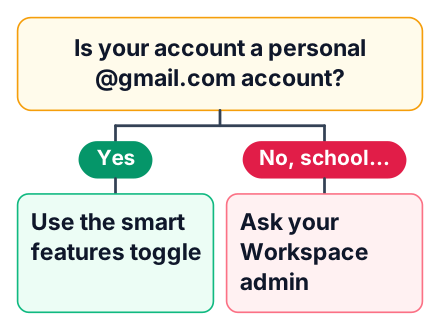
A personal @gmail.com account lets you switch Gemini off yourself, while a school or company Workspace account does not, as WIRED explains. To check, look at the email address you are signed in with. If it ends in your college or company domain, it is a Workspace account. On those accounts, if your admin turns Gemini off or on, you cannot change that in your own settings.
Hide the Docs bottom bar with Bottom bar preferences
If only the Gemini bar at the bottom of the document annoys you, you can remove just that bar without changing any account setting. WIRED lists this path, and it works from inside any open Doc. This is the smallest change you can make. Gemini stays available in the menu, and every other feature keeps working.
Open the Gemini menu
In an open Google Doc, look for the Gemini button or menu on the page and click it. WIRED does not say where this button sits; if you cannot see it, use the Gmail toggle below.
Choose Bottom bar preferences
Look for the Bottom bar preferences option in the list that opens from that menu.
Click Turn off
Once you click it, the bar at the bottom of the page disappears.
Turn off smart features on a personal Gmail account
The main switch for personal accounts sits in Gmail settings, not in Google Docs, according to WIRED's walkthrough. Google groups Gemini with its older "smart features", so one toggle controls both. Follow these steps on a laptop, where the full settings page is easy to reach.
Open Gmail settings
Click the gear icon at the top right, then click See all settings.
Stay on the General tab
Scroll down until you find Google Workspace smart features.
Open the smart feature settings
Click Manage Workspace smart feature settings.
Switch off the top toggle
Turn off the first toggle on that page, the one for Workspace smart features, then save your change.
Now reopen a Google Doc. Most of the Gemini menu, the audio button and the AI toolbar should be gone, though a Gemini button or a Help me write icon may stay and do nothing.
Turn off the second toggle to remove Gemini everywhere
A second toggle, for other Google products, extends the change beyond Docs and Gmail, ZDNET reports. You find it on the same smart feature settings page, under the first switch, and it is the toggle for other Google products. If you only care about Docs, the first toggle is enough. Turn the second one off only if you also want Gemini gone from Google's other apps.
The cost is convenience. Gmail stops adding things like flight bookings to your calendar automatically. If you depend on that for exams or interviews, leave this toggle on and keep only the first one off.
Disable Gemini in the Workspace admin console
Admins can switch Gemini off for a whole organization or for one group, such as students only, as xFanatical's admin guide shows. Groups in Workspace are called Organizational Units (OUs). An OU is a folder of users that share settings.
Open the Admin Console
Sign in with an admin account.
Go to the Gemini settings
Open Generative AI, then Gemini for Workspace, then Gemini in Workspace apps.
Pick an Organizational Unit
Choose the whole organization or a single group.
Disable the toggle and Save
The change applies to every user in that unit.
This turns off Help me write and refine, along with AI summaries, in Docs and Sheets, as well as in Gmail. If you are a student or employee, you cannot do this yourself. Send your IT team a short message like this: "Could you turn off Gemini in Workspace apps for the students OU? The setting is under Generative AI, then Gemini for Workspace."
Hide Gemini with the Bye Bye Gemini Chrome extension
A browser extension hides the AI parts on your own screen, which helps when you cannot change the account setting. WIRED points to Bye Bye Gemini, which hides AI in Google's productivity apps and removes AI Overviews from Google Search.
It changes only what you see in this one browser. Your account still allows Gemini. Open Docs on your phone or a lab computer, and the buttons are back.
Before you install any extension, open its Chrome Web Store page and read the Permissions list before you click Add to Chrome. One that can read every site you visit can also read your documents. Install it only if you are comfortable with that.
Compare the three methods and what each one leaves on
The three methods differ in who can use them, how much they hide and what else they turn off. The table pulls together the ZDNET page with the WIRED and xFanatical pages, with each source linked at its row.
| Method | Who can use it | Menu path | What it hides in Docs | What else it disables or leaves on |
|---|---|---|---|---|
| Personal Gmail smart-features toggle | Anyone with a personal @gmail.com account | Gmail → gear → See all settings → General → Manage Workspace smart feature settings | Gemini menu, audio button, AI toolbar | Turns off Smart Compose and spellcheck in Gmail. A Gemini button stays. (WIRED) |
| Workspace admin console | Workspace admins only | Generative AI → Gemini for Workspace → Gemini in Workspace apps → OU → toggle → Save | Help me write, refine, AI summaries | Basic spellcheck and standard Smart Compose keep working. (xFanatical) |
| Bye Bye Gemini extension | Anyone using Chrome | Install from the Chrome Web Store | AI elements, on that browser only | The account still allows Gemini. Also hides AI Overviews in Search. (WIRED) |
What stays on and what you lose when Gemini is off
Turning off smart features also stops Gmail grammar suggestions and autocorrect. Smart Compose, Smart Reply, nudges and spellcheck go too. WIRED lists the full set of lost features.
Pros
- No AI prompts while you write your own assignment.
- Fewer buttons pulling your attention away from the page.
Cons
- Gmail no longer catches your typos or grammar slips.
- No suggested replies or reminders to answer old emails.
The leftover icons look broken, but they are harmless. ZDNET found that clicking "Help me write" only asks you to turn smart features back on. Gemini does not run unless you agree.
On accounts where the admin turned Gemini off, basic spellcheck still keeps working, as the table shows, so you lose less. If you later decide you want Gemini for one task, such as reading a PDF, see how Gemini edits Docs and PDFs in chat.
Common mistakes when turning Gemini off
Most failed attempts come from looking in the wrong place for the account type. ZDNET's guide walks through the settings, and these are the slips to watch for:
- Searching Docs settings for the main switch. On personal accounts it lives in Gmail.
- Using the personal toggle on a school account. The admin's choice decides, not yours.
- Expecting every icon to vanish. A few stay, but they do nothing until you opt back in.
- Treating the second toggle as required. It is optional: leave it on if you only want Gemini gone from Docs, and turn it off to remove it from Google's other apps too.
Your next step: check whether your account is personal or Workspace, follow the matching method above, then open a Google Doc to confirm the Gemini bar and toolbar are gone. If you use a school or work account, send your admin the exact console path from this post.


