ChatGPT Animated GIFs: How Students Can Use Images 2.6 Now
ChatGPT now makes animated GIFs from text or a photo with OpenAI's Images 2.6 model. Here are four ways students can use them, from README demos to study flipbooks, and the mistakes to avoid.
Say you are building a project README, and your demo needs to show a button changing colour on click. A screenshot cannot show that. As of this update, you can type one sentence into ChatGPT and get a looping GIF back. This post is a news summary built from the launch coverage in The Verge, The Decoder and TestingCatalog, with ideas for how students can use it, and the useful part for students is not the cat dancing.
ChatGPT can now make animated GIFs from a text prompt or an uploaded photo. The feature comes with OpenAI's Images 2.6 model and is rolling out to all ChatGPT and Codex users on web, desktop and mobile. You can change the speed and edit frames inside ChatGPT, so you do not need a separate GIF tool.
What ChatGPT Images 2.6 changes
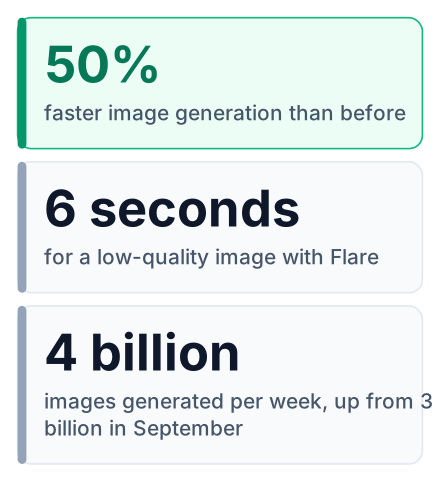
Images 2.6 is the model behind the new GIF feature, and it also generates images about 50% faster than before, according to TestingCatalog. OpenAI shared the release in its official announcement on the OpenAI Developer Community.
The rollout is still under way as I write this in November 2026. If the option is missing in your app, it has probably not reached your account yet. The Verge reports that Codex users get it too, which matters if you already use Codex for coding work.
Speed is the part you will notice first. Here are the two numbers reported at launch:
| What was measured | Reported figure | Source |
|---|---|---|
| Image generation speed vs. the previous model | 50% faster | TestingCatalog |
| Fastest time for one low-quality image with Flare | As little as 6 seconds | TestingCatalog |
How to make a GIF in ChatGPT
You ask for a GIF in one message, and ChatGPT joins several image variations into a short animation, like the pages of a flip book where each page changes a little, as The Decoder describes, which you can then speed up or edit. Their example prompt is as plain as it gets: "can you make a gif of a cat dancing?"
Start with a prompt or a photo
Type what you want to see, or upload a picture to animate.
Ask for a GIF
Say "GIF" in your message, as in the example prompt below, so it is clear you want an animation, not a still image.
Adjust the speed
The coverage says you can change the speed inside ChatGPT but does not name the control, so ask for a slower GIF in the chat if a viewer needs time to read each frame.
Edit the frames
Look at every frame. If one looks wrong, describe the fix in a follow-up message and ask for a new version, because the coverage says frames can be edited but does not say how.
Download the file
Save it and drop it into your README, slides or notes. The launch coverage does not name the download button or the file type, so check the extension of the file you receive and confirm it plays in your README before you commit it.
That tip is plain prompt writing. If you want more practice with it, my student guide to prompt engineering has worked examples.
Four ways students can use GIFs
GIFs are most useful to students when they show something that changes over time, like a UI, a process or a character, which a still image cannot do. A dancing cat is fun, but it will not help your grades or your job search.
Show your project in a README GIF
A short looping GIF at the top of a GitHub README shows a reviewer what your app does before they read any code. I think recruiters and project reviewers often skim, and motion can get a reader's attention faster than text.
Say you built a to-do app where clicking a task crosses it out. You could ask ChatGPT for a GIF of a cursor clicking a task and the line appearing. That gives you a clean concept animation in a minute.
Do not use a generated GIF as your demo. It is a picture of how the app could look, drawn by an image model, so keep it for concept or design mockups. For real behaviour, record your actual screen with a tool like ScreenToGif on Windows or Kap on macOS, export the recording as a GIF, trim it to under ten seconds, and keep the file small before you add it to your README.
Pros
- Fast to make, even before the feature is finished.
- Good for showing a planned design or a concept.
Cons
- It does not show your real code running. A screen recording does.
- A reviewer who opens the app may see something different and lose trust.
Turn hard study topics into flipbooks
A GIF that steps through a process, such as a sorting algorithm or a water cycle, gives you a revision aid you can check in two seconds. Because ChatGPT builds the animation from separate frames, each frame can hold one step.
Say bubble sort keeps confusing you. Ask for a GIF of five bars where neighbours swap until the shortest bar is on the left. Or ask for a request leaving a browser, reaching a server and coming back as a response.
Check every frame before you trust it. Image models can draw wrong details, like two bars swapping in the wrong order or labels with misspelled words. If you learn from a wrong frame, you learn the wrong thing.
Pair the GIF with written notes. Tools like the one in my post on building study guides with Gemini Notebook handle the text side well.
Animate your portfolio and profile
Reference images let you save yourself, pets or characters and reuse them without uploading again, according to OpenAI's announcement, so a portfolio mascot or avatar should look similar across GIFs, though no source promises it will be identical every time.
Say your portfolio site has a small robot mascot. You save it once as a reference, then ask for it waving on your home page and typing on your projects page. It should look similar each time, but compare the frames side by side to check, because I have not tested how consistent the result is.
The fourth idea is a short animated banner for your LinkedIn or GitHub profile. I have not checked whether both sites show animated banners, so test an upload first. Keep it simple: your name, one line about what you build, and a small loop of movement. A neat profile helps when you start applying for the roles I compared in AI engineer fresher salaries in India vs the US.
| Idea | Best for | What to check |
|---|---|---|
| README demo | Showing a planned design or feature | That it matches how the real app looks |
| Study flipbook | Algorithms and step-by-step processes | Every frame for wrong details |
| Portfolio mascot | A personal site with a clear style | That the character looks the same in each GIF |
| Profile banner | LinkedIn and GitHub profiles | Spelling and that text stays readable while it moves |
What the API update means if you build apps
OpenAI also released GPT-Image-2.6 Flare and Sunburst in the API, The Verge reports, so you can build image features into your own projects. Flare is the faster option, while Sunburst aims for higher quality.
The API also gets image markup and SVG export, per TestingCatalog. SVG is a vector format, which means the image stays sharp at any size. A new complexity parameter controls how much planning the model does before it draws.
Demand is real. ChatGPT users now generate over 4 billion images per week, up from 3 billion in September, according to The Verge.
Common mistakes with AI-made GIFs
Most problems come from trusting the output without checking it, and from forgetting the rules of your course.
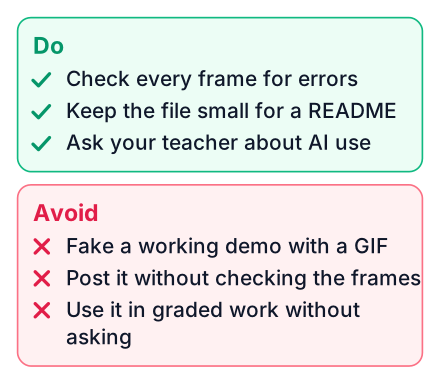
- Do check every frame. One wrong frame can hide in a fast loop.
- Do keep the file small. A heavy GIF slows down your README and web pages.
- Do ask your teacher before you put AI images in graded work.
- Don't use a generated GIF to fake a working demo. Record the real thing.
- Don't leave text in a GIF without reading it closely for spelling errors.
Open ChatGPT today and ask for a short looping GIF of one feature from your latest project, check every frame, then add it to your README.


