Turn a Paper Sketch Into a Working App With Gemini Canvas
On November 5, 2026, Google updated Gemini's Canvas to turn a photo of a hand-drawn sketch into a working, editable app. Free-tier users can test the feature today. This post covers the three-step workflow and two catches to know before sharing.
Anyone with the link can edit the data inside an app you build from a notebook doodle. That is the catch hiding in Google's latest Gemini update, and it is worth knowing before the fun part. Picture a habit tracker drawn in your notebook, with a box for each day and a button to tick it off. You do not know where to start in a code editor. A photo of that page is now enough to get a first version.
You can now photograph a paper sketch, upload it to Gemini, choose Canvas, and Gemini writes the code for a live app you can edit. It works on the free tier. You test the app in a preview window and change colors, fonts and features by chatting or by editing the code directly. It is a fast way to get a first prototype.
What Google launched on November 5
Google announced that Gemini's Canvas can turn a photo of a hand-drawn sketch, such as an app mock-up, habit tracker or game board, into a working, editable app, as described on Google's own blog post. The examples matter. They are the kind of small ideas students draw in the margins of a lecture notebook.
Canvas is not a new product. It first launched on March 18, 2025, according to Unite.AI's report, as a space inside Gemini for writing documents and code. What changed is the input. Before, you described an app in words. Now a drawing can do that job.
That shift helps people who think visually. Many beginners know what their app should look like long before they know what to call each part of it.
Turn a sketch into an app in three steps
Photograph your sketch, upload it, select Canvas, and ask Gemini "Can you code this app?", the same workflow Jetstream confirms in its own walkthrough. Gemini reads the drawing, works out the layout and the buttons, then writes the code. You do not need any special coding setup.
Upload the photo
Open Gemini, tap the add button, and attach the picture of your sketch.
Select Canvas
Choose Canvas from the tools menu before you send the message.
Ask for the code
Type "Can you code this app?" and send it. The app appears in a preview next to the chat.
The photo decides how good the first version is. Gemini can only build what it can read. A few habits help:
- Draw with a dark pen, not a light pencil.
- Use plain paper, so ruled lines do not look like part of the layout.
- Label each button with what it does, like "Add habit" or "Reset week".
Edit the app in the preview window
After the first version appears, you test it in the preview and adjust colors, fonts and features in real time, as Unite.AI describes. Click the buttons. Type into the boxes. Find out what is missing before you change anything.
You have two ways to make changes. The first is chat: you describe the change in plain words and Gemini rewrites the code. The second is Code view, where you edit the code yourself, line by line.
I have not run this sketch through Gemini myself, so the steps here come from the sources above, not from my own test. Treat the prompt below as a starting point, not a recorded result. A good follow-up prompt names one change and says where it goes, like this one for the habit tracker:
Make the "Add habit" button green and move it below the list.
When I tick a box, save it so it is still ticked after I refresh the page.
Use a larger font for the habit names.
Something will break at some point. When it does, open Show console. Errors and logs appear there, and you can paste an error message back into the chat and ask Gemini to fix it. Writing clear prompts like these is a skill of its own; my guide to prompt engineering for students covers how to phrase them.
The free tier is enough to start
Canvas is available to signed-in Gemini users, including the free tier, according to Unite.AI, so a student pays nothing to try this. It works wherever the Gemini app is offered, which covers both India and the US.
The paid plans are optional. Google AI Pro and Ultra add Gemini 3 with a 1-million-token context, per the same report. The context is how much text the model can hold in mind at once, counted in tokens, and a token is roughly a word or part of a word. A bigger context helps when your app grows into many files. None of the sources gives a rupee price or publishes limits on how many apps or prompts the free tier allows, so I have not listed any.
| Free tier | Google AI Pro / Ultra | |
|---|---|---|
| Cost | $0 | Paid plan (the sources give no price) |
| Model | Not named in the source | Gemini 3 |
| Context size | Not stated in the source | 1 million tokens |
| Who needs it | Anyone building a first prototype | People working on large, multi-file projects |
Source for the table: Unite.AI.
If you already use Gemini for other study work, such as the free video model, you do not need a new account.
Two catches before you share your app
Catch one: shared Canvas apps are public links. Anyone with the link can view and edit the app's data, as Unite.AI notes. The source does not say whether a stranger can change only the saved entries or the code as well. Check the share settings on your own app before you send a link, and until then assume both. That includes the ticks the example prompt saves after a refresh.
Catch two: Unite.AI says the controls for changing text and layout are on the desktop web app, so detailed editing is harder on a phone. Neither catch is a reason to skip the feature. Both change how you should use it.
Pros
- Sharing takes one link, with no hosting setup.
- The free tier is enough to try it.
- A drawing works as the input, which helps people who think visually.
- You can change the app by chat or by editing the code.
Cons
- Anyone with the link can view and edit the app's data.
- Detailed edits are harder on a phone.
- The sources publish no free-tier limits or paid prices.
For editing, use a laptop. Sketch and photograph on your phone if you like, then switch to the desktop web app to adjust text and layout.
Use Canvas to prototype portfolio projects, then rebuild them by hand
Treat the Canvas app as a throwaway first draft of a full-stack project idea, then rebuild the code by hand so you actually learn it. A recruiter can tell when you cannot explain your own project. The draft is for you, not for your resume.
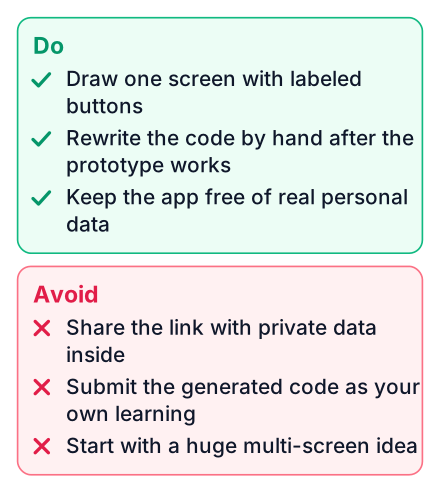
Here is the path I would follow. Go from a paper idea to a running app in minutes, without opening an empty editor. Change it with prompts until it does what you pictured. Then open Code view, read how Gemini built it, and write a cleaner version yourself in your own project folder.
- In Code view, list the pieces Gemini made, such as the input form, the list of entries and the function that adds one.
- Rewrite one function in your own words without copying it, and check it still works.
- Add a small backend in Node or Flask. A real backend here means a server program you write that receives requests from the page and saves the data.
- Store the data in a database instead of inside the page, then repeat for the next feature.
Take an expense splitter for a shared flat or a group trip. It is useful for a student in Pune or in Ohio. Your sketch shows a list of people, a box to add an expense, and a line that says who owes whom. Canvas builds it. You then rebuild it with a real backend and a database, which turns a toy into a portfolio piece. My list of full-stack projects with source code shows how far each idea can grow.
| Do | Don't |
|---|---|
| Use the Canvas app to test whether your idea works | Submit the generated code as your portfolio project |
| Read every file in Code view before rebuilding | Copy the code without knowing what each part does |
| Rebuild one feature at a time by hand | Ask Gemini to fix every error for you |
| Add a real database in your own version | Treat the Canvas draft as your finished project |
Gemini can also help with the written side of the project. You can ask it to edit a README or project report in chat, while the code stays your own work.
Try it today with one small sketch
Pick one small idea, such as a study-schedule tracker or a habit tracker, draw it in five minutes, and run the three steps in the Gemini app today. Then pick one feature from the result to rewrite by hand, push your rebuilt version to GitHub, and write two lines about what you changed from the Gemini draft.