What You Can Build with Gemini 4 Neon: 5 Projects and the Habits to Copy
Google's Nov 24 showcase presents five interactive 3D projects built with Gemini 4 Neon, all created in Antigravity. Each one teaches a practical habit you can apply to your own browser-based coding practice.
One of the five projects Google showed on Nov 24 was a hexagon flame shader, built in under five minutes. The other four are a glowing Earth, a group of butterflies, a black hole and a pendulum wave. Each one runs in a browser tab. For a student, the useful question is narrow: what did these builders do, and which parts can you copy this week?
Google's Nov 24 showcase shows that Gemini 4 Neon can turn a prompt into an interactive 3D scene in a browser. The five builders used Google Antigravity, an editor where the model writes and runs the code. Google does not draw lessons from these projects. The habits below are my own suggestions, each tied to one project, for your three.js or WebGL practice.
Google's Nov 24 showcase: five projects, one tool
This builders page followed the Neon launch and lists one project from each creator. Each entry credits the builder by handle and says a little about how the project was made.
The table below is my answer to a plain question: what can you actually build with a frontier coding model? The first three columns come from Google's page. The last column is my own suggestion for practice, not something Google claims.
| Project | Builder | Thinking level or tool | One technique to copy (my suggestion) |
|---|---|---|---|
| Glowing 3D Earth | @HarshithLucky3 | High thinking | Build one sphere, rotate it, then add the glow as a separate step |
| Three.js butterflies | @thtbee_ | xhigh thinking | Animate one object, then reuse it with small differences |
| Hexagon flame shader | @anicho | /swarm, done in under five minutes | Read the shader line by line and change one number at a time |
| Interactive black hole | @kimmonismus | None stated | Put two or three values on sliders |
| 3D pendulum wave | @goodhunt | None stated | Give each object its own period and let the pattern appear |
| Source: Google, Gemini 4 Neon developer projects | |||
If you are still deciding which Gemini model to code with, read my Gemini 4 Neon vs Carbon comparison for coding first.
Glowing Earth: start with one object and one setting
@HarshithLucky3 made a glowing 3D Earth with Neon on high thinking, as Google's showcase notes, which shows that a single well-known object is a good first target. Everyone knows what Earth should look like. That makes it easy to judge whether the output is right.
A thinking level is a setting that controls how much the model reasons before it writes its answer. Higher levels give it more room on a hard problem.
Here is the habit to copy. Ask for one plain sphere first and get it on screen. Then ask for slow rotation. Only after both work, ask for the glow as its own request. If the glow breaks something, you know exactly which step caused it.
Three.js butterflies: raise thinking to xhigh for motion
@thtbee_ made Three.js butterflies on xhigh thinking, the highest setting named in the showcase. The scene has many things moving at once. Google does not say why the builder picked that level. My guess is that wing movement for many objects at once is harder to get right than one rotating ball.
Three.js is a JavaScript library that draws 3D scenes in the browser using WebGL, so you write normal JavaScript instead of raw graphics code. Its official documentation has a page for each object used here, so search the name there when you meet one you do not know.
The habit to copy is reuse. Make one butterfly that flaps well. Then create copies and change a few things on each: wing speed, colour, start position. The scene looks busy, but you only wrote one butterfly.
When you read generated code, look for that pattern. If you see the same mesh built ten times by hand, ask the model to turn it into a function.
Hexagon flame shader: /swarm for a fast first draft
@anicho built a hexagon flame shader in under five minutes by using the /swarm command in Antigravity, according to Google's page. A shader is a small program that colours every pixel on the screen, and it runs on your graphics card.
Google's page does not explain how /swarm works inside. I will not guess. What matters for you is that a fast first draft is only a starting point.
Shader code looks scary because it is full of bare numbers. That is also what makes it a good teacher. Read the generated file line by line. Pick one number, change it, and reload. Did the flame get taller, faster or redder? Write down what each number controls.
Interactive black hole: give the viewer controls
@kimmonismus made a 3D black hole shader with switchable camera viewpoints and sliders for the lensing warp, so the viewer can change the scene instead of only watching it, as the showcase describes. Lensing means the black hole's gravity bends the light passing near it, so the stars behind it look warped.
The habit to copy: put two or three values on sliders. A plain HTML range input, which is the built-in slider element, is enough and needs no library. Connect each slider to one value in your scene, such as the warp strength or the camera distance. Start with one slider and add the next only when the first works.
Pendulum wave: simple physics makes the pattern
@goodhunt coded a 3D pendulum wave where each sphere has its own period, and the differences between them create traveling interference patterns, per Google's showcase. A period is the time one full swing takes.
The pattern is not drawn by hand. Each ball follows one simple rule. Because the periods differ slightly, the balls drift in and out of line with each other, and waves seem to travel along the row.
This is my own illustration, not the builder's code. It is a full file with the scene, camera, renderer and lights included, and the camera line is marked in a comment. The periods grow in small steps, so the balls fall out of step and then slowly line up again.
<!doctype html>
<html>
<body style="margin:0">
<script type="module">
// Illustration only: not @goodhunt's code.
// Needs three installed (npm install three) and served by a bundler such as Vite.
import * as THREE from 'three';
const scene = new THREE.Scene();
const camera = new THREE.PerspectiveCamera(50, innerWidth / innerHeight, 0.1, 100);
// Camera: to the side of the row so every ball is in view.
camera.position.set(8, -1, 3.5);
camera.lookAt(0, -1.5, 3.5);
const renderer = new THREE.WebGLRenderer({ antialias: true });
renderer.setSize(innerWidth, innerHeight);
document.body.appendChild(renderer.domElement);
scene.add(new THREE.AmbientLight(0xffffff, 0.6));
const sun = new THREE.DirectionalLight(0xffffff, 2);
sun.position.set(5, 5, 5);
scene.add(sun);
const pendulums = [];
const COUNT = 15;
for (let i = 0; i < COUNT; i++) {
  const ball = new THREE.Mesh(
    new THREE.SphereGeometry(0.2),
    new THREE.MeshStandardMaterial({ color: 0x66ccff })
  );
  ball.position.z = i * 0.5;
  scene.add(ball);
  // Each ball swings a little slower than the one before it.
  pendulums.push({ ball, period: 2 + i * 0.05 });
}
const clock = new THREE.Clock();
function animate() {
  const t = clock.getElapsedTime();
  for (const p of pendulums) {
    const angle = 0.6 * Math.sin((2 * Math.PI * t) / p.period);
    p.ball.position.x = Math.sin(angle) * 3;
    p.ball.position.y = -Math.cos(angle) * 3;
  }
  renderer.render(scene, camera);
  requestAnimationFrame(animate);
}
animate();
</script>
</body>
</html>
To rebuild it yourself, go in this order:
One sphere
Put a single ball on the screen and check the camera can see it.
One swing
Move that ball back and forth with a sine function inside the animation loop.
Many spheres
Use a loop to create a row of balls, all swinging the same way.
Different periods
Give each ball a slightly longer period than the last, then watch the waves appear.
How do you get access to Gemini 4 Neon today?
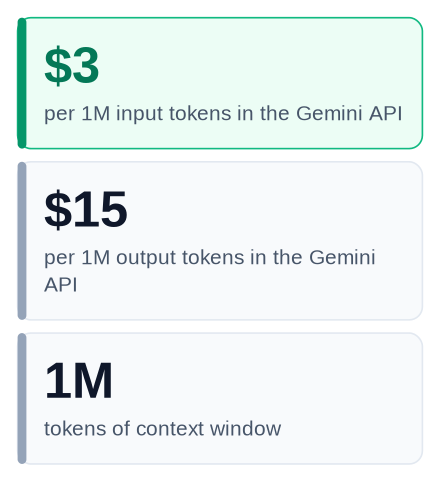
Use the paid tier of the Gemini API in Google AI Studio, or a paid Google AI Pro or Ultra plan for Antigravity and the Gemini app, according to Google's launch post and the builders page. The exact routes are:
- Developers: the Gemini API paid tier, in Google AI Studio and Android Studio.
- Pro or Ultra subscribers: Neon inside Antigravity and AI Studio.
- Pro or Ultra subscribers in the Gemini app: pick Neon from the model drop-down.
API pricing is counted in tokens. A token is a small piece of text, often part of a word, that the model reads or writes.
Google gives no rupee price, so I am not converting one. To see how Neon's cost compares with the cheaper option, read Gemini 4 Neon vs Flash for coding. If you plan to fill that large context window with big files, my guide to Gemini API file slicing shows how to send only the part you need.
What can a student actually build with it?
In my view, interactive 3D pages that run in a browser are now a realistic first project, so the useful skill is judging and editing the output, not typing every line. That holds whether you are preparing for campus placements in India or building a portfolio for US internships. A link is easy to share, and a free host such as GitHub Pages lets anyone open your work in seconds.
Here is a plan. Pick one of the five projects. Rebuild it from a prompt. Then change one thing by hand and explain, in your README, what you changed and why. That last part is what shows you understand the code.
Keep one thing in mind about any showcase: a company picks its best results. Your first attempt may come out broken or plain. That is normal, and fixing it is where you learn.
Open Antigravity or AI Studio today and prompt Neon for one rotating sphere in three.js. Run it in your browser, then change one value by hand and watch what changes.


